Vendor Portal
Receive work orders, submit quotes, and track job progress
Accessing Your Portal
Getting Invited
- Property manager will send you an email invitation
- Click the activation link
- Complete your vendor profile:
- Company name
- Contact information
- Service categories (plumbing, electrical, HVAC, etc.)
- License numbers
- Insurance information
- Set your password
- Click "Activate Account"
Vendor Benefits: Receive work orders directly, submit quotes digitally, track payment status, and build your reputation through the platform.
Dashboard Overview
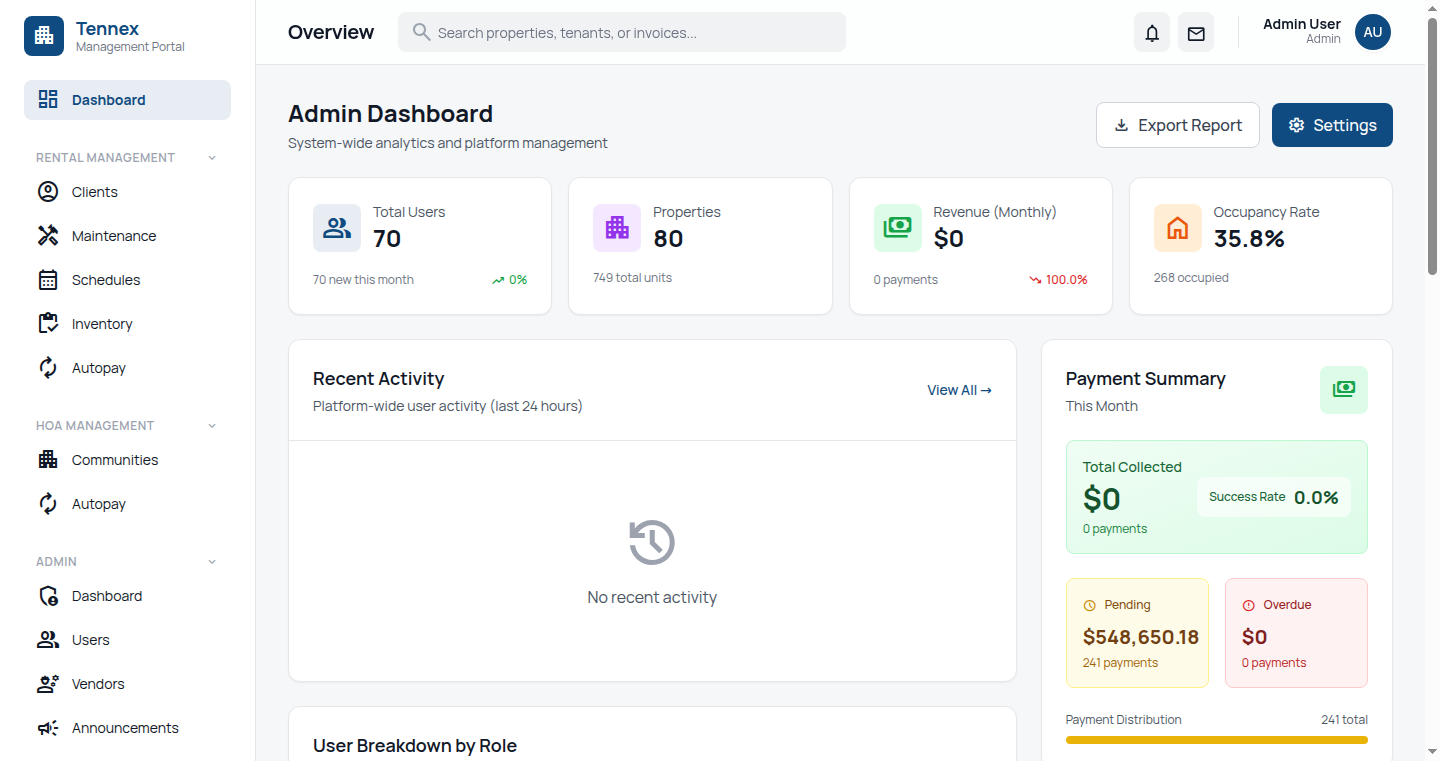
Your vendor dashboard shows:
- Pending Quotes: Work orders awaiting your quote
- Active Jobs: Approved work in progress
- Completed Jobs: Recent completions pending payment
- Earnings: Monthly and YTD totals
- Response Rate: Your quote submission speed
Viewing Work Orders
New Work Order Notifications
When a property manager assigns you a work order, you'll receive:
- Email notification
- SMS alert (if enabled)
- In-app notification
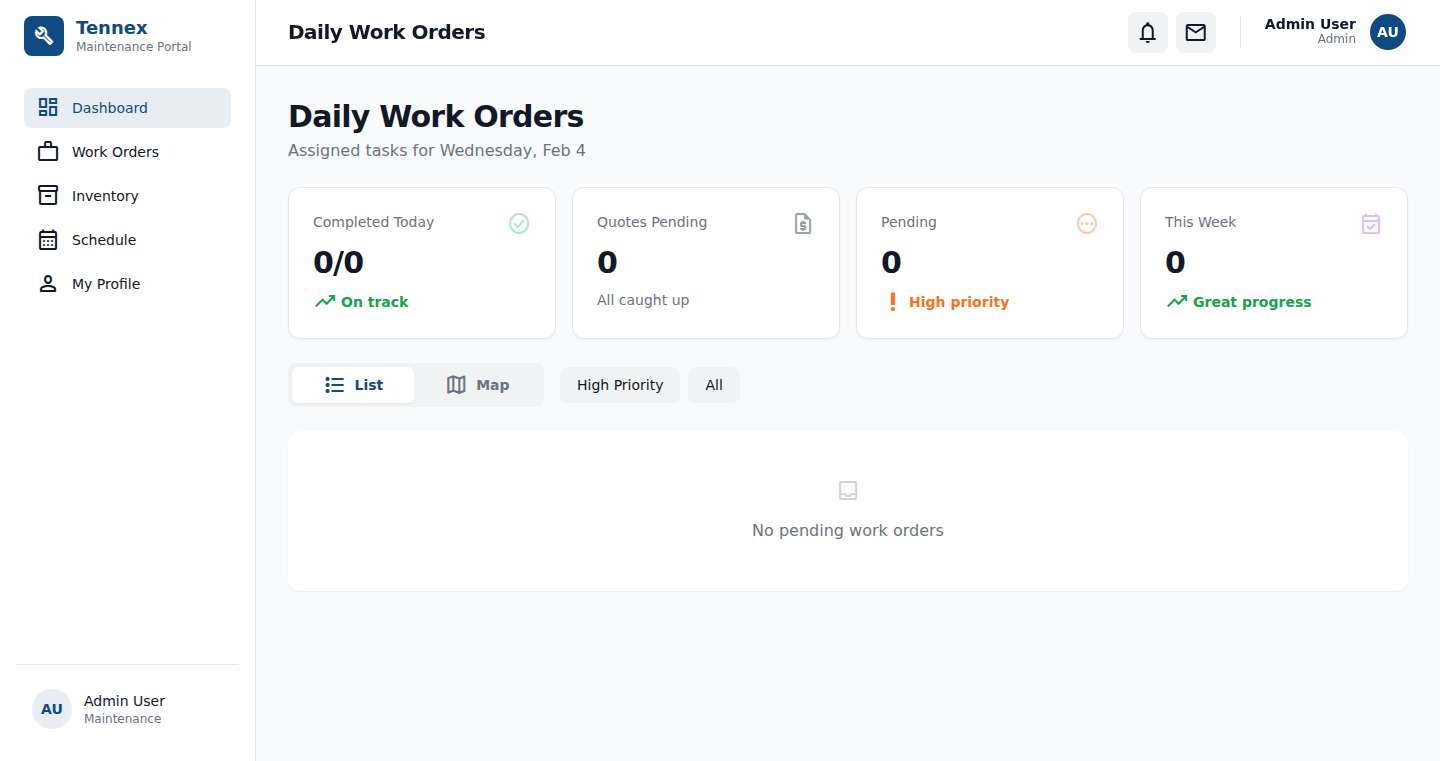
Accessing Work Orders
- Click "Work Orders" in the sidebar
- View list organized by status:
- Quote Requested: Needs your quote
- Quote Submitted: Awaiting approval
- Approved: Work authorized, ready to schedule
- In Progress: Work started
- Completed: Work finished
- Click any work order to view details
Work Order Details
Each work order includes:
- Property Address: Location of the job
- Unit Number: Specific unit (if applicable)
- Issue Description: Detailed problem description
- Photos: Images of the issue
- Priority Level: Emergency, High, Medium, Low
- Contact Info: Property manager or tenant contact
- Access Instructions: How to access the property
Submitting Quotes
Creating a Quote
- Open the work order
- Click "Submit Quote"
- Fill in quote details:
- Labor Cost: Your labor charges
- Materials Cost: Parts and supplies needed
- Additional Fees: Travel, disposal, etc.
- Total Amount: Auto-calculated
- Estimated Timeline: When you can start and complete
- Notes: Additional information or recommendations
- Upload supporting documents (optional):
- Detailed breakdown
- Product specifications
- Warranty information
- Click "Submit Quote"
Pro Tips for Quotes:
- ✅ Submit quotes within 24 hours for better reputation
- ✅ Include detailed breakdown for transparency
- ✅ Provide realistic timelines
- ✅ Add photos of recommended parts/products
Quote Status
After submitting, your quote can be:
- Pending Review: Property manager reviewing
- Approved: Work authorized, proceed to schedule
- Rejected: Not approved (with reason)
- Revision Requested: Changes needed
Providing Status Updates
Scheduling Work
- Once quote is approved, open the work order
- Click "Schedule Job"
- Select date and time
- Add any scheduling notes
- Click "Confirm Schedule"
- Property manager and tenant receive notification
Starting Work
- When you arrive on site, open the work order
- Click "Start Work"
- This timestamp tracks when work begins
Progress Updates
- During work, provide updates:
- Upload photos of progress
- Note any additional issues found
- Update estimated completion time if needed
- Click "Add Update"
- Property manager receives notifications
Completing Work
- When job is finished, click "Complete Job"
- Upload completion photos (before/after)
- Add completion notes
- Submit warranty information (if applicable)
- Click "Mark as Complete"
Additional Work: If you discover additional problems that need addressing, submit a new quote through the work order before proceeding. Don't do unapproved work.
Submitting Invoices
Creating an Invoice
- After completing work, open the work order
- Click "Create Invoice"
- Invoice auto-populates from your approved quote
- Adjust if needed (with explanation):
- Actual vs estimated materials
- Additional labor if scope changed
- Upload supporting receipts
- Click "Submit Invoice"
Invoice Status
Track your invoice through these stages:
- Submitted: Under review
- Approved: Ready for payment
- Paid: Payment processed
Payment Tracking
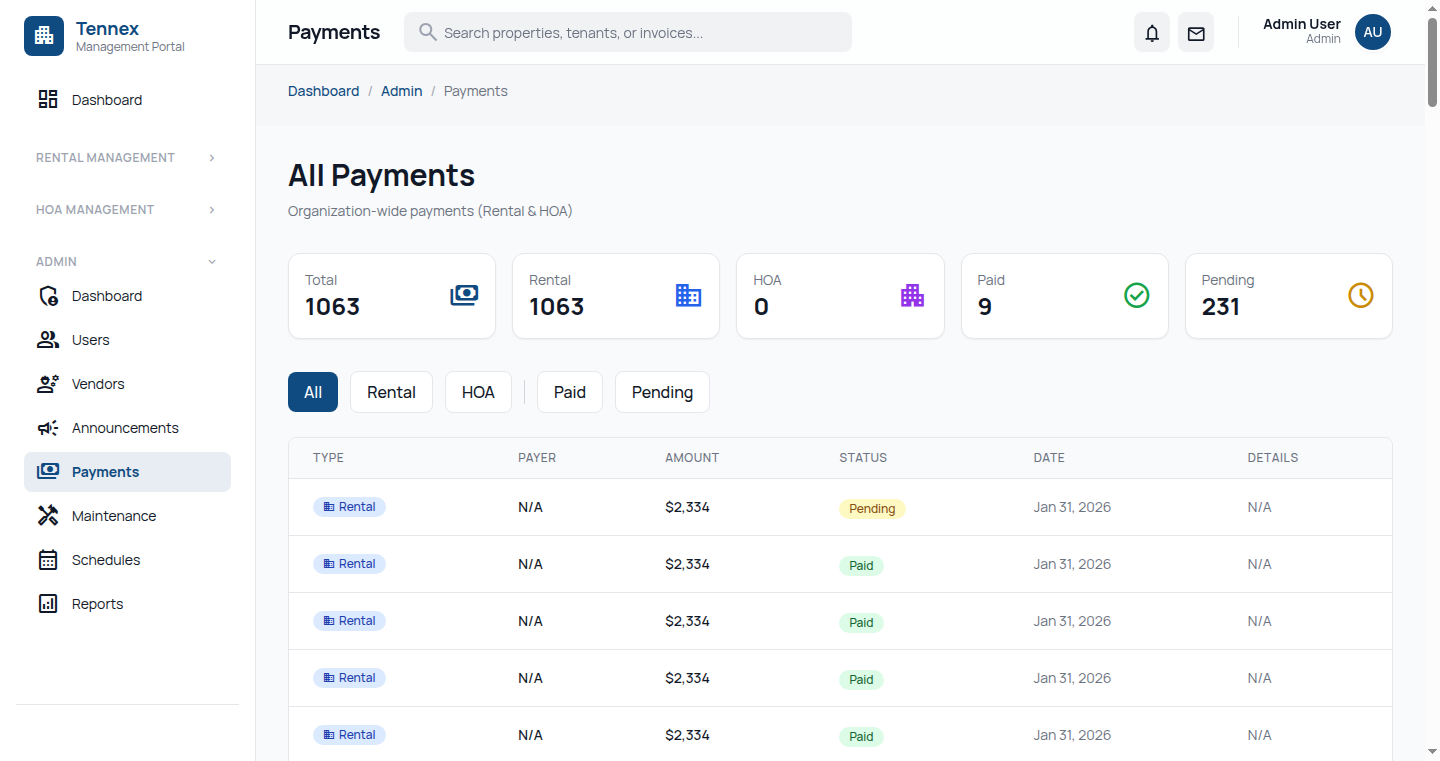
- Click "Payments" in the sidebar
- View all invoices and payment status
- See expected payment dates
- Download payment history for accounting
Managing Your Vendor Profile
Update Company Information
- Click your company name in the top right
- Select "Profile"
- Update:
- Contact information
- Service areas
- License numbers (keep current)
- Insurance certificates (upload renewals)
- Payment information
- Click "Save Changes"
Service Categories
- Go to Profile → Services
- Select all categories you provide:
- Plumbing
- Electrical
- HVAC
- Appliance Repair
- Carpentry
- Painting
- Landscaping
- And more...
- This determines which work orders you receive
Notification Settings
- Go to Profile → Notifications
- Configure:
- New work order alerts
- Quote approvals
- Payment notifications
- Message from property managers
- Choose delivery: Email, SMS, or both
Building Your Reputation
Performance Metrics
Property managers can see your:
- Response Time: How quickly you submit quotes
- Completion Rate: Percentage of jobs finished
- Quality Rating: Property manager feedback
- On-Time Performance: Meeting scheduled dates
Getting More Work
Improve your metrics to receive more work orders:
- Submit quotes within 24 hours
- Provide detailed, accurate quotes
- Communicate proactively during jobs
- Upload quality before/after photos
- Complete work on schedule
- Keep licenses and insurance current
Common Questions
How quickly do I need to respond to work orders?
Property managers expect quotes within 24-48 hours for standard work. Emergency work orders should receive immediate response (within 1-2 hours).
Can I decline a work order?
Yes. If you can't take a job, click "Decline" and provide a brief reason. However, frequent declines may reduce future work order assignments.
What if I find additional problems during work?
Document the issue with photos, submit a new quote through the existing work order, and wait for approval before proceeding with additional work.
When will I get paid?
Payment terms vary by property management company. Standard terms are Net 30 days from invoice approval. Check your vendor agreement for specific terms.
Can I work for multiple property managers?
Yes! You can receive work orders from multiple property management companies through a single vendor portal account.