Owner Portal
View property financials, maintenance history, and tenant information
Accessing Your Portal
Getting Your Login Credentials
- Your property manager will send you an email invitation
- Click the activation link in the email
- Set your password
- Click "Activate Account"
- You'll be logged into your owner portal
Portal Access: You'll have read-only access to view your property's performance, financials, and maintenance history. Your property manager handles day-to-day operations.
Dashboard Overview
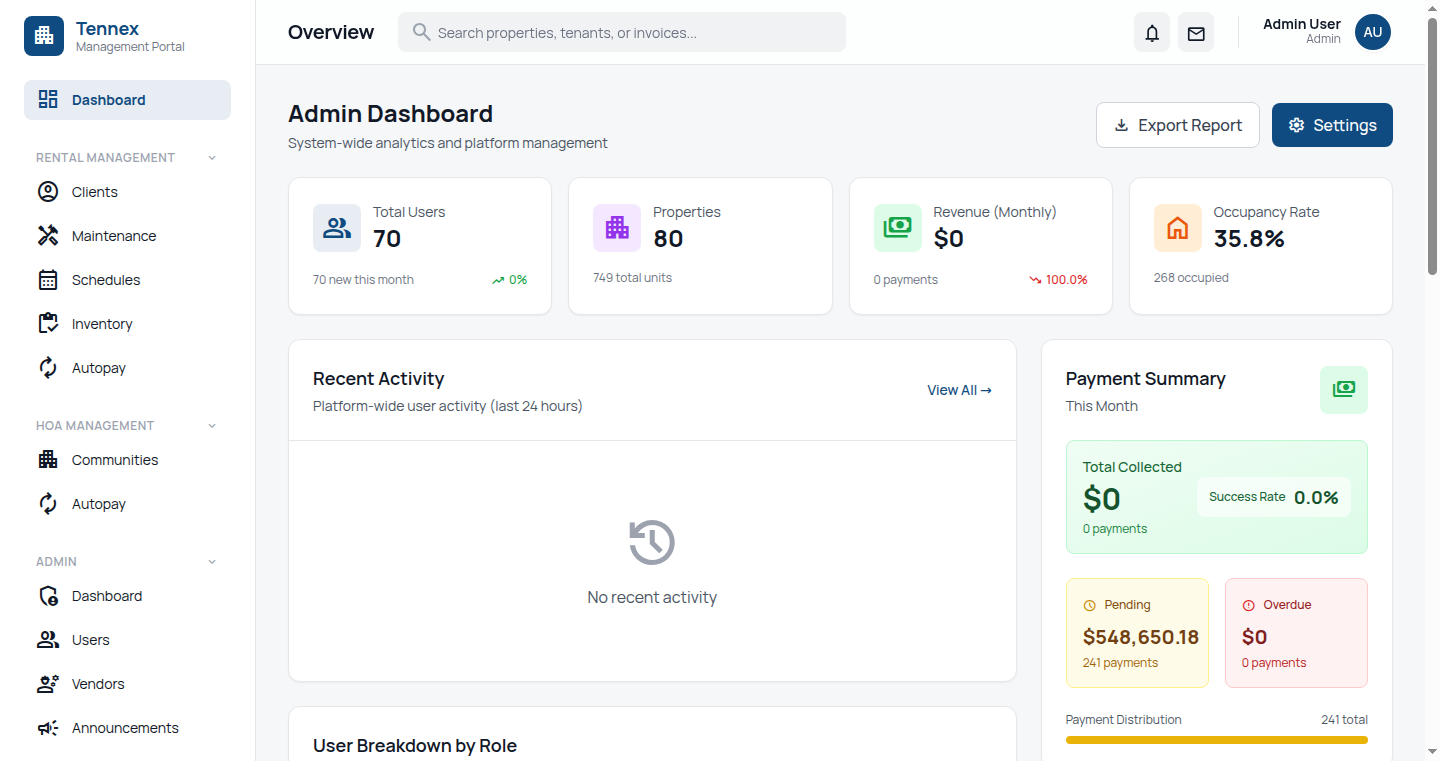
Your owner dashboard provides a high-level view of:
- Property Performance: Occupancy rate and rental income
- Financial Summary: YTD income, expenses, and net operating income
- Recent Activity: Latest maintenance requests and payments
- Upcoming Events: Lease renewals and scheduled maintenance
Viewing Financial Reports
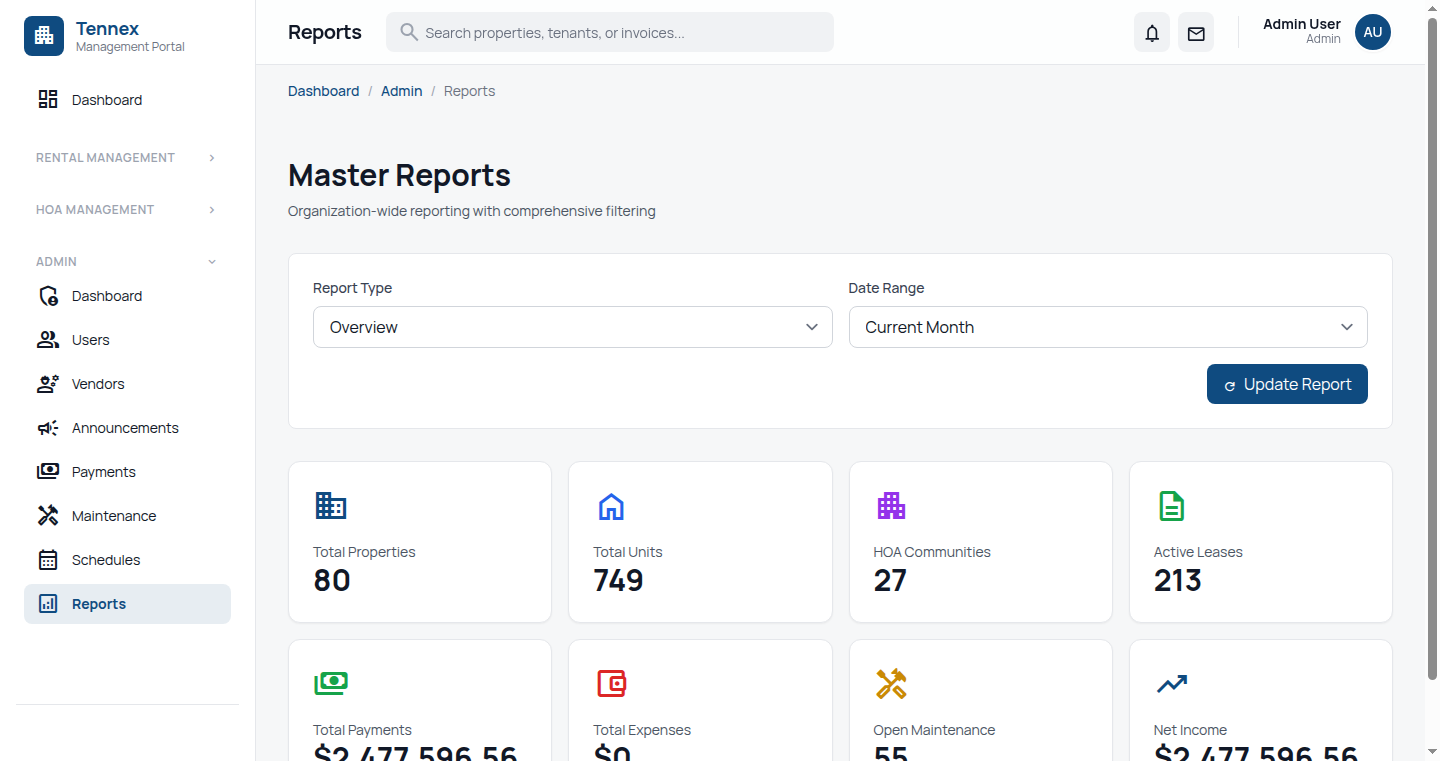
Monthly Statements
- Click "Reports" in the sidebar
- Select "Monthly Statements"
- View automatically generated statements showing:
- Income: Rent collected, late fees, other income
- Expenses: Maintenance, utilities, management fees
- Net Income: Bottom line for the month
- Download as PDF or Excel
Year-to-Date Summary
- Go to Reports → YTD Summary
- View annual performance metrics:
- Total rent collected
- Occupancy rate
- Maintenance costs
- ROI calculation
- Compare to previous years
Payment History
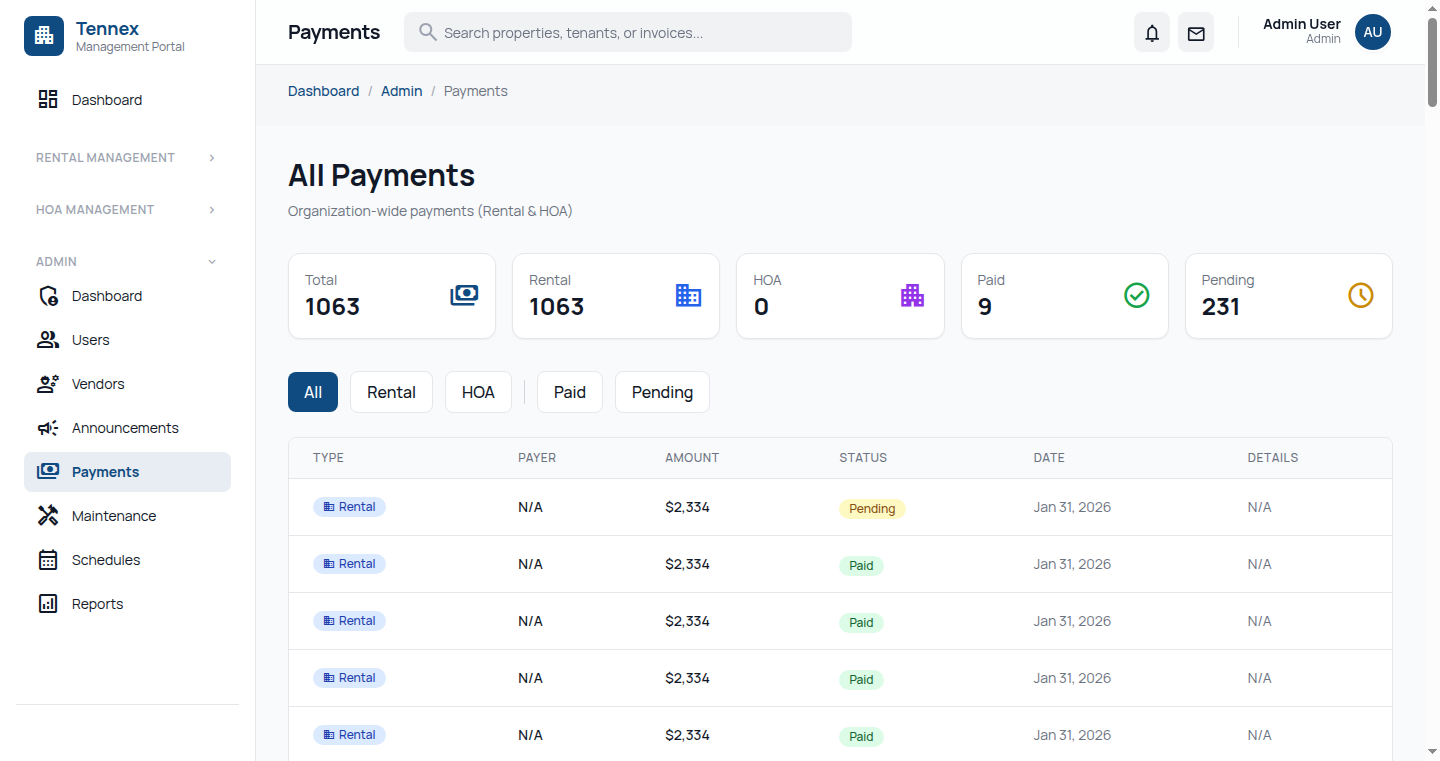
- Click "Payments" in the sidebar
- View all rent payments received:
- Payment date
- Amount
- Tenant name
- Unit number
- Payment method
- Filter by date range, unit, or tenant
- Export to CSV for accounting
Property Details
Viewing Property Information
- Click "Properties" in the sidebar
- Select your property from the list
- View detailed information:
- Basic Info: Address, type, year built
- Units: Number of units and occupancy status
- Documents: Insurance policies, tax records, inspection reports
- Photos: Property images
Unit Details
- From property view, click on a specific unit
- See unit information:
- Bedrooms/bathrooms
- Square footage
- Current rent amount
- Lease expiration date
- Tenant name (if occupied)
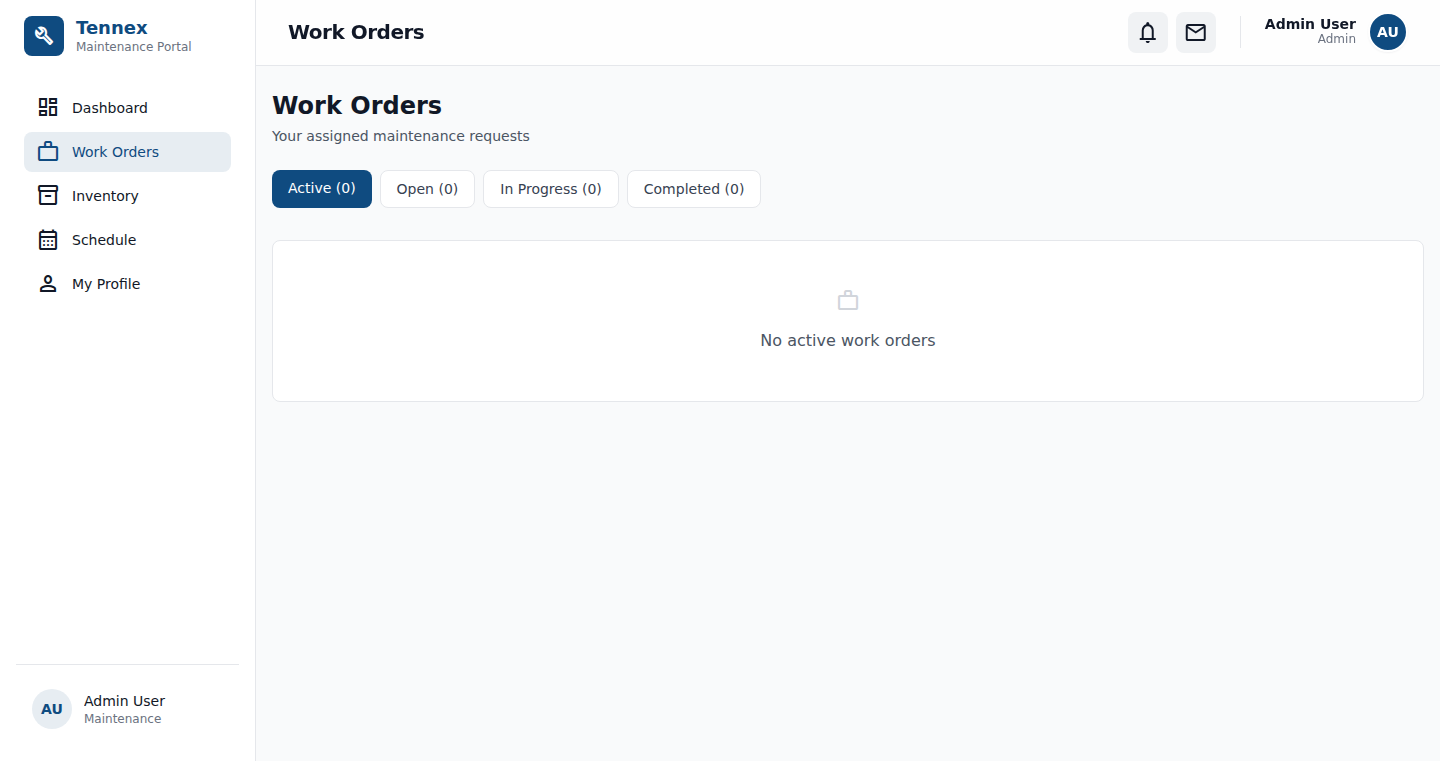
Maintenance History
Viewing Maintenance Requests
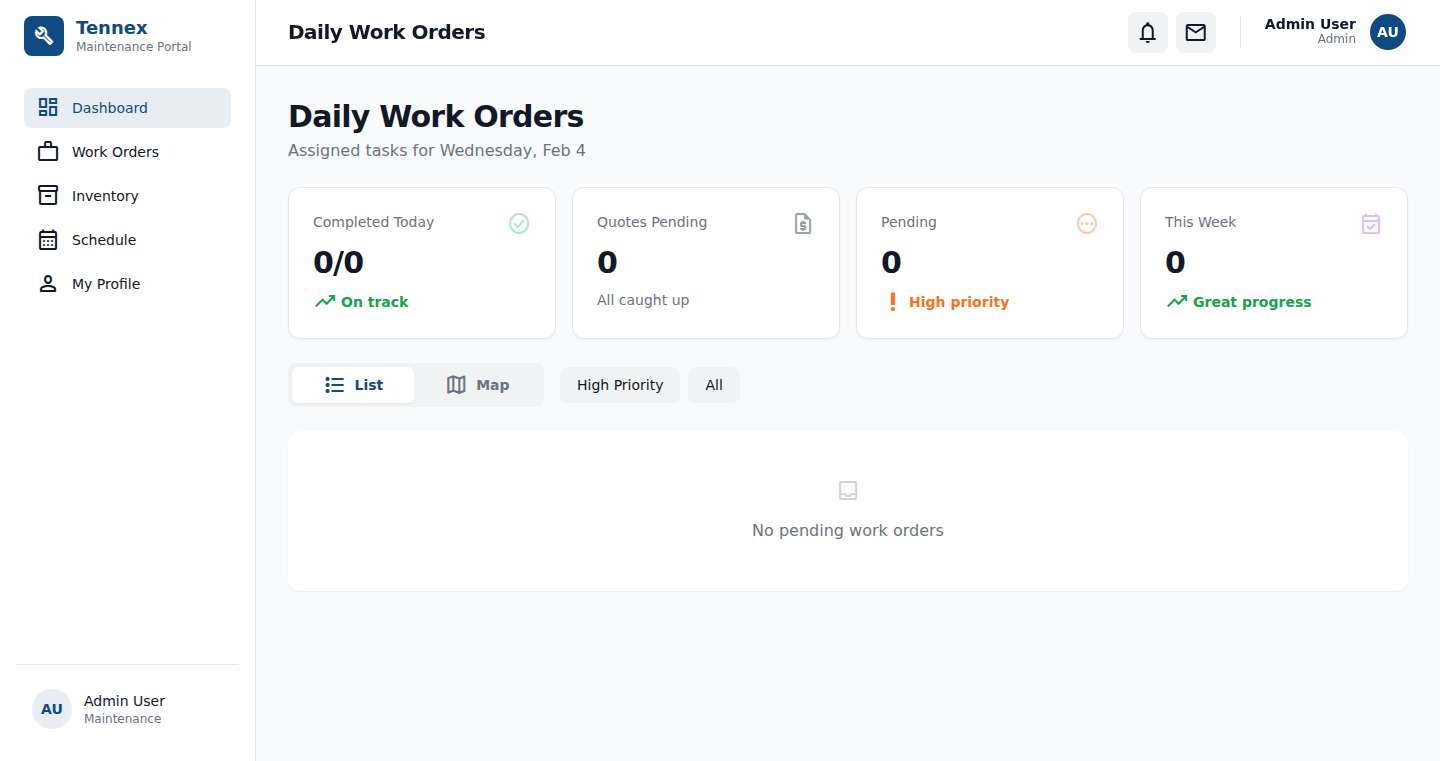
- Click "Maintenance" in the sidebar
- View all maintenance requests for your property
- Filter by:
- Status: Open, In Progress, Completed
- Priority: Emergency, High, Medium, Low
- Category: Plumbing, Electrical, HVAC, etc.
- Date Range: Custom date filters
Request Details
- Click on any maintenance request
- View complete details:
- Description and photos
- Date submitted
- Assigned vendor
- Work timeline
- Cost breakdown
- Status updates
Tenant Information
Viewing Tenant Details
- Click "Tenants" in the sidebar
- View list of current tenants
- Click on a tenant to see:
- Contact information
- Unit number
- Lease start and end dates
- Monthly rent amount
- Payment history
- Maintenance requests submitted
Privacy Note: You'll see essential tenant information needed for property oversight. Personal details like social security numbers and bank account information are not visible to owners.
Lease Documents
- From the tenant details page
- Click "Documents" tab
- Access:
- Signed lease agreement
- Move-in inspection report
- Lease renewal documents
- Download copies for your records
Managing Your Account
Update Profile Information
- Click your name in the top right
- Select "Profile"
- Update contact information
- Click "Save Changes"
Notification Preferences
- Go to Profile → Notifications
- Choose which notifications you want to receive:
- Monthly financial statements
- Maintenance requests over $X amount
- Lease renewals
- Late rent payments
- Select delivery method (email, SMS, or both)
- Click "Save Preferences"
Common Questions
How often are financial reports updated?
Monthly statements are generated automatically on the 5th of each month. Payment history and maintenance costs are updated in real-time.
Can I communicate with tenants through the portal?
Direct tenant communication should go through your property manager to maintain professional management protocols. You can view tenant information but messaging should be handled by the management team.
Can I approve maintenance expenses?
This depends on your management agreement. Some owners require approval for expenses over a certain amount. Check your management contract or ask your property manager about your approval rights.
Can I add multiple properties?
Yes! If you have multiple properties managed by the same company, you'll see all of them in your portal. Use the property selector in the top navigation to switch between properties.
How do I get help?
Contact your property manager directly using the contact information in your management agreement. They can answer questions about your specific property and portal access.