HOA Board Member Portal
Create proposals, manage violations, and oversee community operations
Accessing Board Portal
Board Member Setup
- Receive board member invitation email
- Click activation link
- Set up your board profile:
- Name and contact info
- Board position (President, Treasurer, Secretary, Member)
- Term start and end dates
- Set password
- You'll have enhanced permissions based on your role
Board Permissions: Board members have access to all member features PLUS financial management, violation tracking, proposal creation, and member management tools.
Dashboard Overview
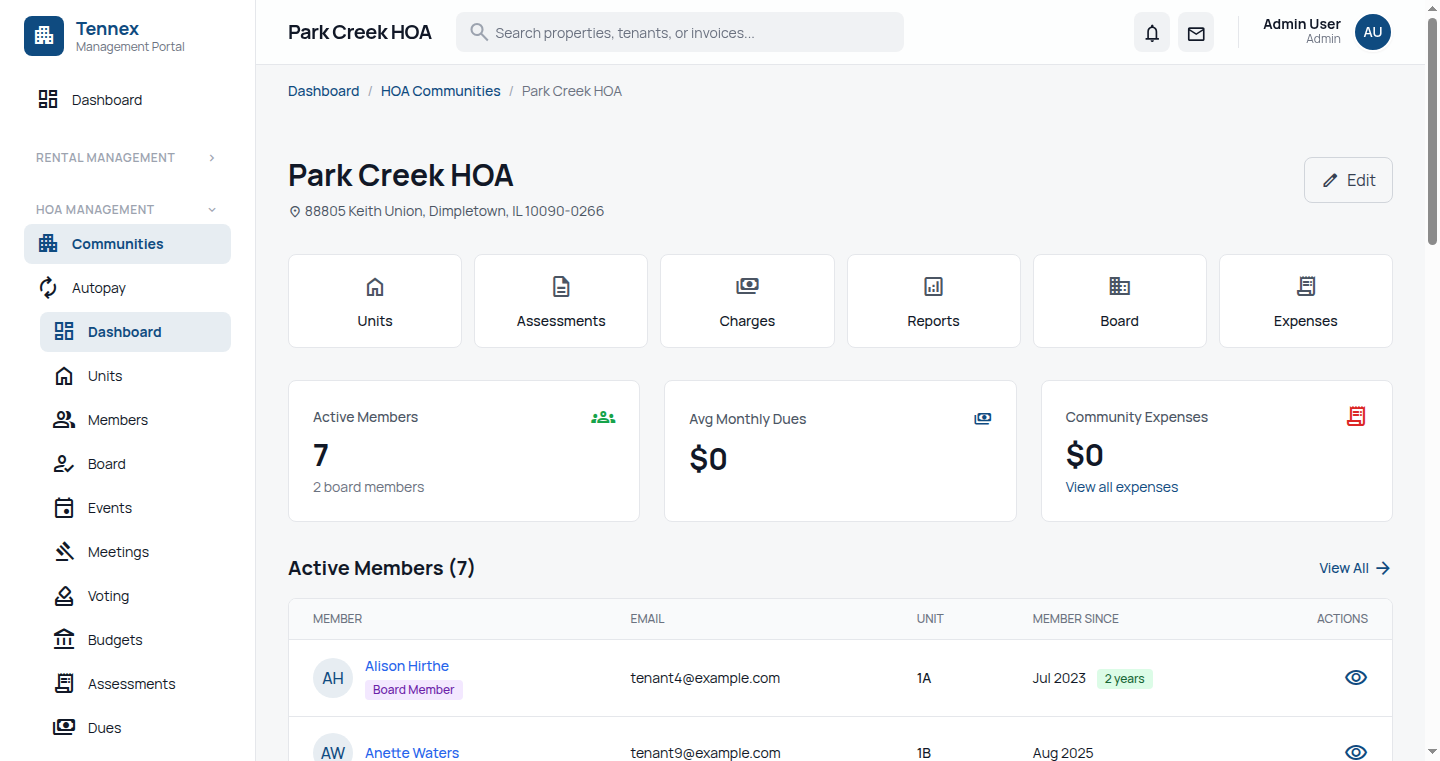
Your board dashboard shows:
- Financial Health: Budget vs actual, reserve fund status
- Collection Rate: Percentage of assessments collected
- Active Proposals: Items in voting, results pending
- Open Violations: CC&R issues awaiting resolution
- Pending Approvals: Architectural requests needing review
- Upcoming Meetings: Board calendar
Managing Finances
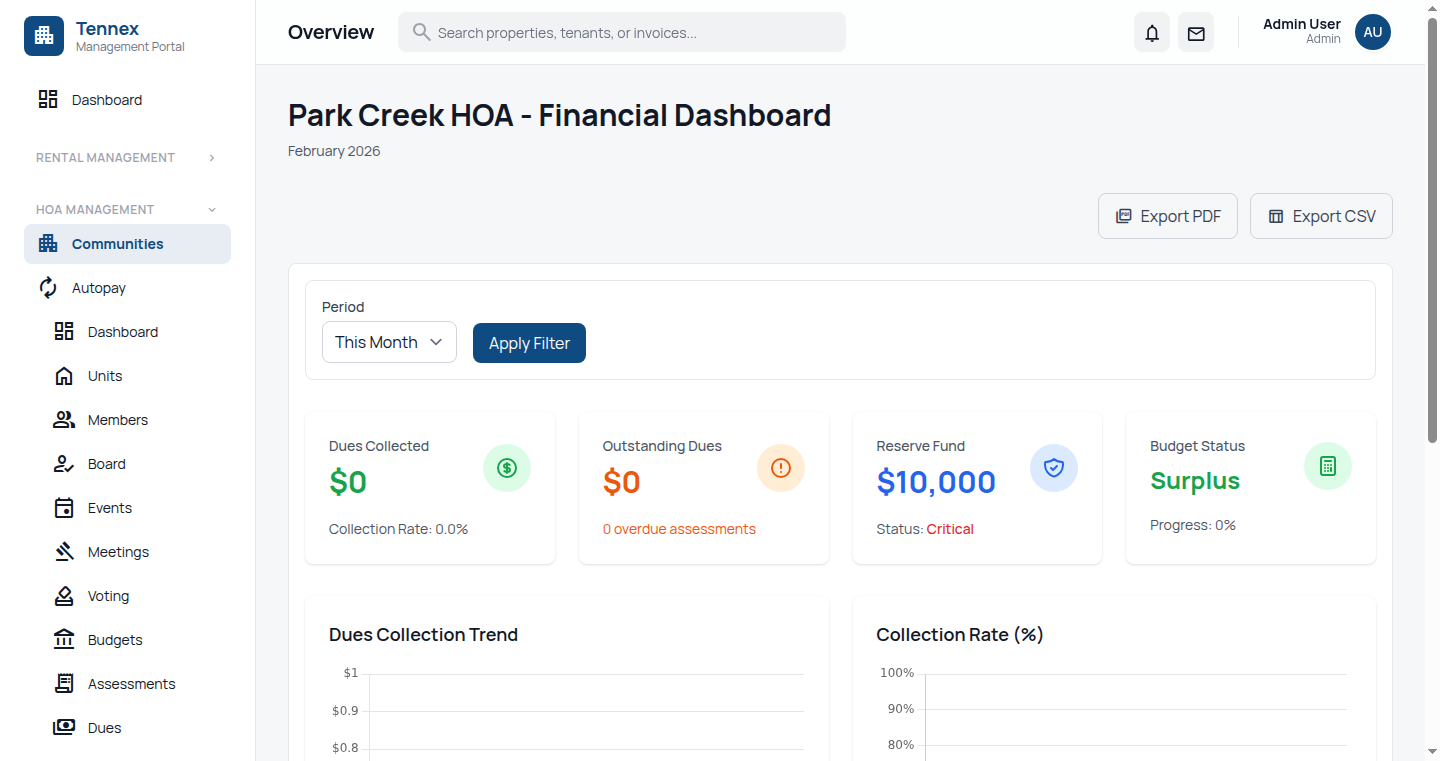
Viewing Financial Reports
- Click "Financials" in the sidebar
- Access comprehensive reports:
- Budget Overview: YTD actual vs budgeted
- Income Statement: Assessments, late fees, other income
- Balance Sheet: Assets, liabilities, reserves
- Cash Flow: Operating and reserve accounts
- Delinquency Report: Members with outstanding balances
- Export to Excel/PDF for board meetings
Creating Annual Budget
- Go to Financials → Budget Planning
- Click "Create New Fiscal Year Budget"
- Start with previous year's budget as template
- Adjust line items:
- Assessment income (based on membership count)
- Operating expenses (maintenance, utilities, insurance)
- Reserve fund contributions
- Capital improvements
- Budget automatically calculates required assessment amount
- Save draft for board review
- After board approval, click "Activate Budget"
Reserve Fund Management
- View reserve fund balance and projections
- Track scheduled capital expenses
- Plan for major repairs/replacements
- Generate reserve study reports
Creating Proposals
Types of Proposals
- Budget Approval: Annual budget ratification
- Assessment Changes: Dues increases or special assessments
- CC&R Amendments: Changes to governing documents
- Capital Projects: Major community improvements
- Policy Changes: Rules and regulations updates
- Board Elections: Nominate and elect board members
Creating a Proposal
- Click "Voting" in sidebar
- Click "Create Proposal"
- Fill in proposal details:
- Title: Clear, concise proposal name
- Type: Select from types above
- Description: Detailed explanation
- Rationale: Why this is needed
- Cost Impact: Financial implications (if any)
- Timeline: Implementation schedule
- Attach supporting documents:
- Contractor bids
- Budget analysis
- Architectural drawings
- Legal opinions
- Set voting period:
- Start date (when voting opens)
- End date (typically 14-30 days)
- Define quorum requirements (per bylaws)
- Click "Publish Proposal"
- All members receive notification
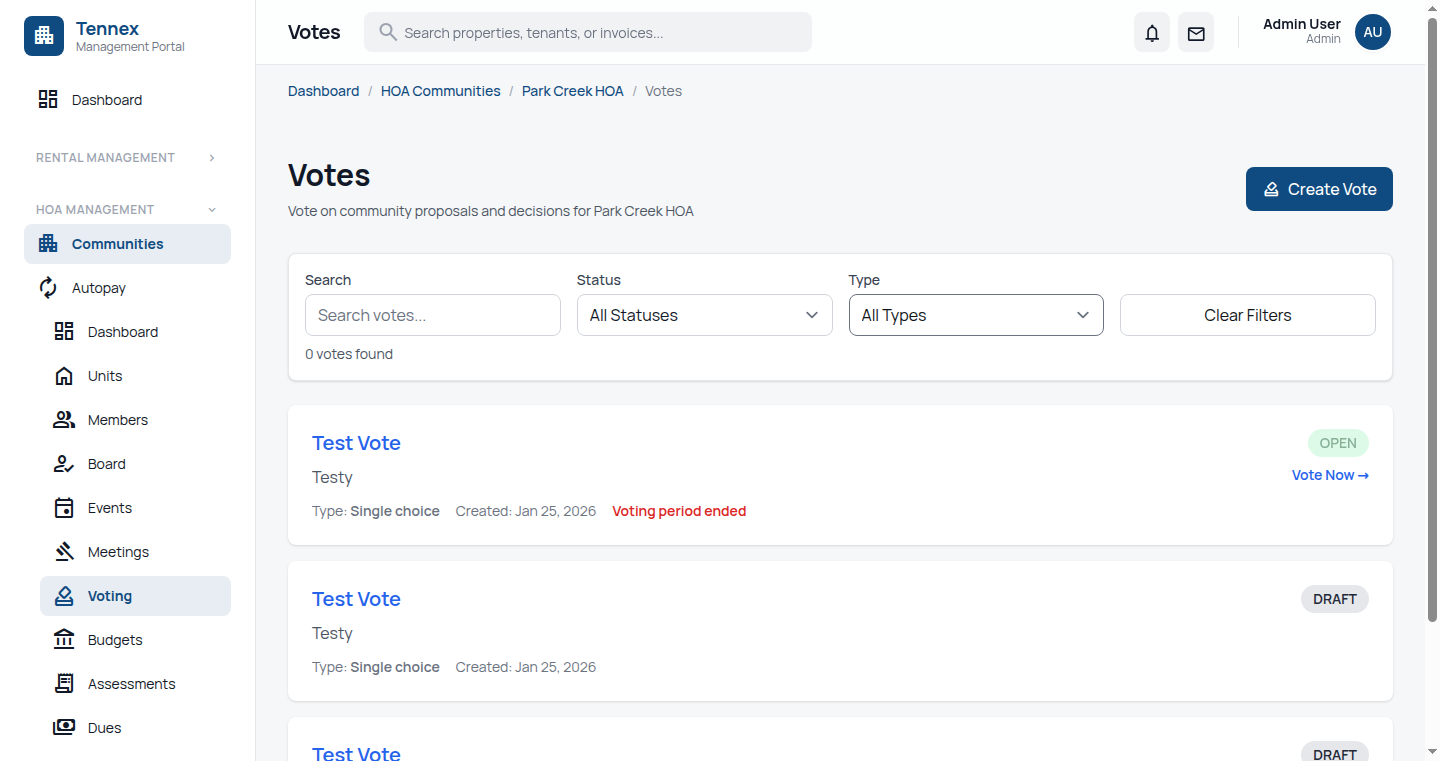
Monitoring Voting Progress
- View real-time voting statistics:
- Total votes cast
- Percentage participation
- Current for/against tally
- Members who haven't voted
- Send voting reminders to members
- Answer member questions through proposal comments
Closing a Proposal
- Voting automatically closes at deadline
- System calculates results
- Board reviews outcome
- Add implementation notes
- Results published to all members
Managing Violations
Reporting a Violation
- Click "Violations" in sidebar
- Click "Report Violation"
- Fill in violation details:
- Property Address: Select from member list
- Violation Type:
- Architectural (unapproved changes)
- Maintenance (neglected property)
- Parking (unauthorized vehicles)
- Noise/Nuisance
- Pet policy
- Landscaping
- CC&R Reference: Specific rule violated
- Description: Detailed explanation
- Evidence: Upload photos
- Date Observed: When violation occurred
- Set cure deadline (typically 14-30 days)
- Click "Issue Violation Notice"
- Member receives email and portal notification
Violation Workflow
Violations progress through these stages:
- First Notice: Informal notification, no fine
- Cure Period: Member has time to resolve (14-30 days)
- Second Notice: If not resolved, formal warning
- Hearing Scheduled: Member can appeal to board
- Fine Imposed: If still unresolved after hearing
- Continuing Fines: Ongoing fines until compliance
- Legal Action: Last resort for persistent violations
Reviewing Member Responses
- View violation submissions from members
- Check uploaded proof of correction
- Verify compliance with site visit (if needed)
- Click "Close Violation" if resolved
- Or escalate to next level if not resolved
Processing Appeals
- Review member appeal explanation
- Examine supporting evidence
- Schedule board hearing (if required)
- Board votes on appeal
- Record decision in system
- Member receives notification of outcome
Assessment Management
Generating Monthly Assessments
- Go to Assessments → Generate
- System auto-generates based on:
- Approved annual budget
- Number of member properties
- Any special assessments
- Review assessment list
- Apply any adjustments (prorated for new members, etc.)
- Click "Publish Assessments"
- All members notified via email
- Assessments appear in member portals
Tracking Collections
- View real-time collection status
- See which members have:
- Paid in full
- Partial payment
- Not paid (delinquent)
- Generate collection reports
- Send payment reminders
Managing Delinquencies
- Click "Delinquent Accounts"
- View members with outstanding balances
- See payment history and amount owed
- Apply late fees per policy
- Send collection notices
- Set up payment plans (if board approves)
- Escalate to collections attorney (if needed)
Special Assessments
- Create proposal for special assessment (requires member vote)
- After approval, go to Assessments → Special Assessment
- Enter:
- Amount per property
- Purpose/project
- Due date
- Payment options (lump sum or installments)
- Publish special assessment
- Track separately from regular assessments
Member Management
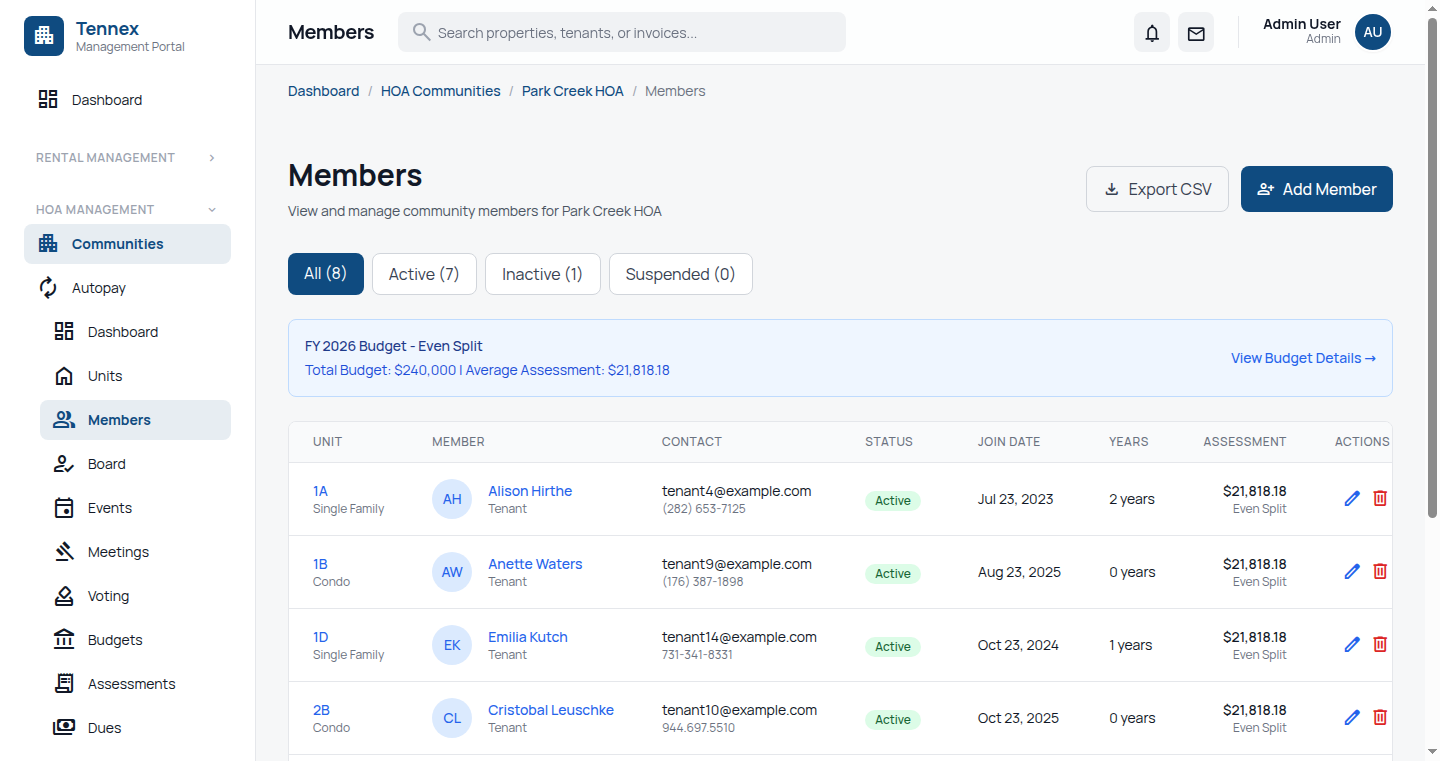
Adding New Members
- Click "Members" in sidebar
- Click "Add Member"
- Enter property and owner information
- Click "Send Invitation"
- New owner receives portal access email
Updating Member Records
- Search for member property
- Update:
- Owner name (for sales/transfers)
- Contact information
- Occupancy status (owner-occupied vs rental)
- Tenant information (if rental)
- Vehicle registrations
- Pet registrations
- Changes reflect immediately
Document Management
Uploading Documents
- Click "Documents" in sidebar
- Select category
- Click "Upload Document"
- Choose file
- Add description and tags
- Set visibility (all members or board only)
- Click "Publish"
Meeting Minutes
- Go to Documents → Meeting Minutes
- Click "Add Minutes"
- Enter meeting date and type (board or member meeting)
- Upload approved minutes PDF
- Minutes automatically published to members
Architectural Review
Processing Requests
- Click "Architectural Requests"
- View pending requests from members
- Review submitted plans and materials
- Check against architectural guidelines
- Options:
- Approve: Grant permission to proceed
- Approve with Conditions: Specify requirements
- Request More Info: Need clarification
- Deny: Does not meet guidelines (provide reason)
- Member receives decision via email and portal
Common Board Tasks
Sending Community Announcements
- Click "Announcements"
- Click "Create Announcement"
- Write message (meeting notices, community events, policy updates)
- Attach documents if needed
- Choose delivery: immediate or scheduled
- Select recipients: all members or specific groups
- Publish
Generating Year-End Reports
- Go to Reports → Annual Reports
- Select fiscal year
- System generates:
- Financial statements
- Budget vs actual analysis
- Reserve fund status
- Collection rate summary
- Violation statistics
- Maintenance costs
- Export as PDF for member distribution
Common Questions
How do I transition board members?
Go to Members → Board Members. Remove outgoing member's board role and add new member with appropriate position. They'll receive notification of their new board access.
Can board members see member payment information?
Board members can see account balances and payment status but not specific payment method details (bank accounts, card numbers) for privacy.
What if a member disputes a violation?
The member can file an appeal through their portal. Schedule a board hearing, review evidence from both sides, vote on the appeal, and record the decision in the system.
How do we handle emergency spending?
Board can approve emergency expenses up to policy limits without member vote. Document in meeting minutes and create proposal for member ratification at next meeting if amount exceeds emergency threshold.