Maintenance Staff Portal
View assigned work, update job status, and coordinate property maintenance
Accessing Maintenance Portal
First-Time Setup
- Receive employee invitation email from property manager
- Click activation link
- Set up your maintenance profile:
- Name and contact information
- Mobile phone (for job notifications)
- Skills and specialties (plumbing, electrical, HVAC, general)
- Work schedule and availability
- Set password
- Download mobile app (optional, for field updates)
Mobile Access: The maintenance portal is fully mobile-optimized so you can update job status directly from the field using your phone or tablet.
Dashboard Overview
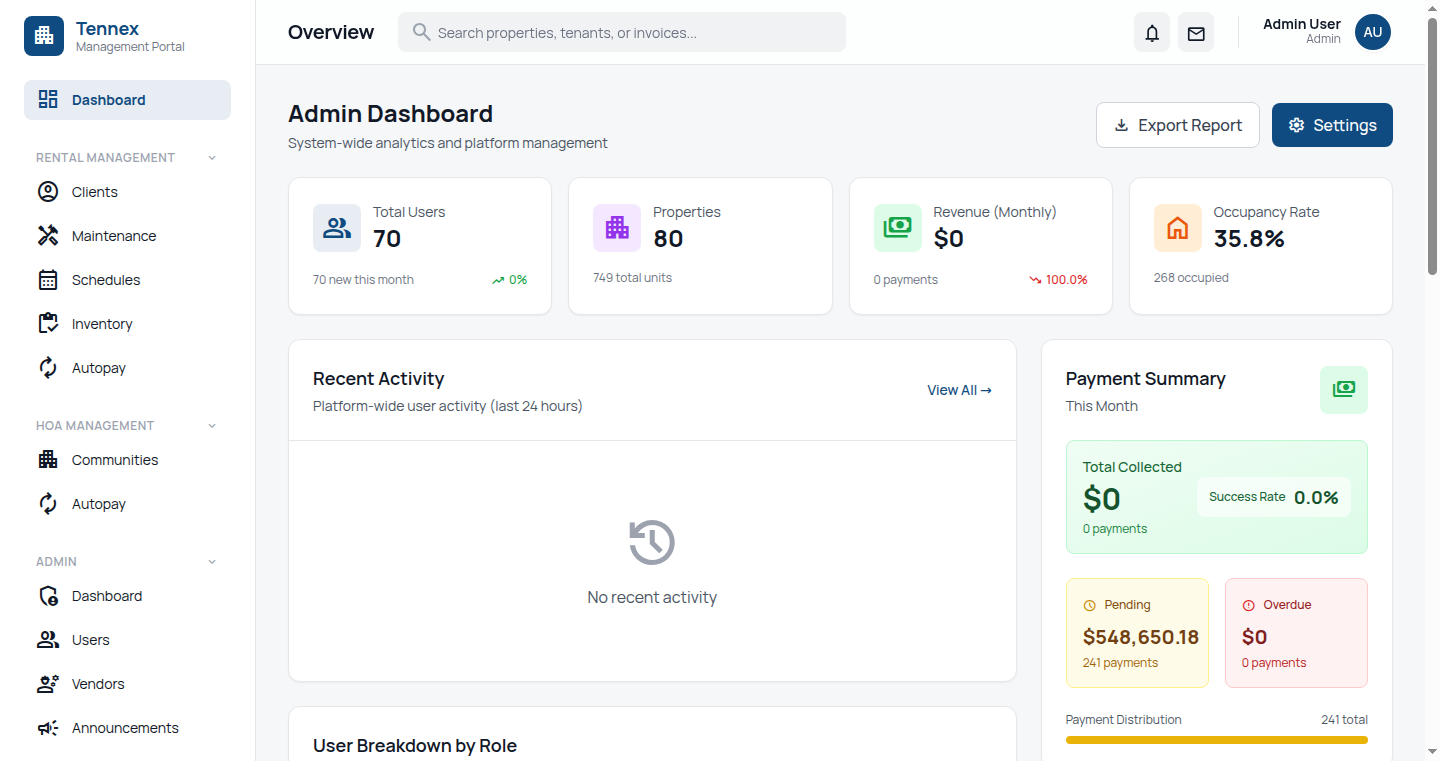
Your maintenance dashboard shows:
- Today's Work Orders: Jobs assigned for today
- Priority Tasks: Emergency and urgent requests
- Open Work Orders: All active assignments
- Completed This Week: Your performance tracking
- Materials Needed: Items to purchase or request
- Schedule Calendar: Upcoming scheduled maintenance
Viewing Work Orders
Work Order List
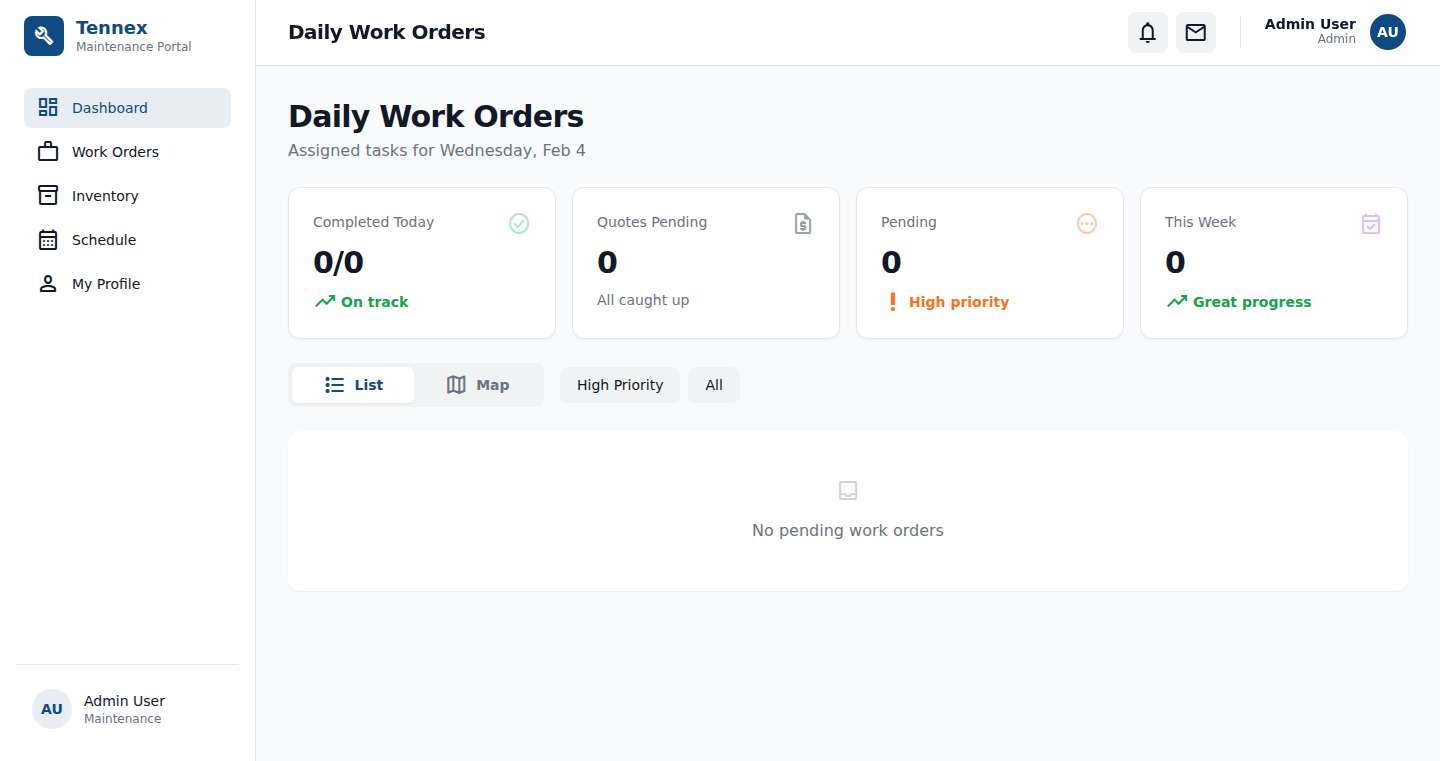
- Click "Work Orders" in sidebar
- See all assigned maintenance requests
- Filter by:
- Priority: Emergency, Urgent, Standard, Low
- Status: New, Scheduled, In Progress, Completed
- Property: Specific building or unit
- Date Range: Due date
- Sort by priority or due date
Work Order Details
- Click on any work order to see:
- Request Details: What needs to be fixed
- Location: Property address and unit number
- Priority Level: Emergency (2hr), Urgent (24hr), Standard (3-5 days), Low (1-2 weeks)
- Tenant/Owner Contact: Name and phone number
- Access Instructions: How to access unit (key location, call ahead, etc.)
- Problem Photos: Images uploaded by tenant/owner
- Special Notes: Additional context or requirements
Priority Levels Explained
- Emergency: Respond within 2 hours
- Examples: Water leak, no heat in winter, security issue, gas leak
- You'll receive SMS and phone call
- Urgent: Respond within 24 hours
- Examples: No hot water, appliance failure, toilet not flushing
- SMS and email notification
- Standard: Complete within 3-5 days
- Examples: Minor repairs, non-critical maintenance
- Email notification
- Low Priority: Complete within 1-2 weeks
- Examples: Cosmetic issues, minor improvements
- Portal notification
Providing Status Updates
Accepting a Work Order
- Open the work order
- Review details and photos
- Click "Accept Work Order"
- Status changes to "Scheduled"
- Tenant/owner receives notification that you're assigned
Scheduling the Work
- Click "Schedule" button
- Choose date and time window
- Add estimated duration
- Click "Send Schedule"
- Tenant/owner receives appointment confirmation
- Appointment syncs to your calendar
Starting the Job
- When you arrive on-site, open the work order
- Click "Start Work"
- Status updates to "In Progress"
- Timestamp recorded
Progress Updates
- Click "Add Update" while working
- Write brief progress note:
- "Identified cause of leak - broken supply line"
- "Waiting for part delivery - ETA Tuesday"
- "Replaced water heater element, testing"
- Upload photos of:
- Problem diagnosis
- Parts being replaced
- Work in progress
- Property manager and tenant/owner see updates in real-time
Completing the Work
- When job is finished, click "Complete Work Order"
- Fill in completion details:
- Work Performed: Description of what was done
- Parts Used: Materials and quantities
- Time Spent: Labor hours
- Photos: Before and after shots
- For tenant-requested work, note if tenant was present
- Click "Submit Completion"
- Status changes to "Completed"
- Tenant receives completion notification
Quality Photos: Good before/after photos protect you if issues arise later and help document the quality of your work.
Reporting Additional Issues
- If you discover other problems while working:
- Click "Report Additional Issue"
- Describe what you found
- Upload photos
- Indicate urgency level
- System creates new work order
- Property manager reviews and prioritizes
Tracking Materials
Recording Parts Used
- In work order, click "Add Materials"
- Search inventory or add new item:
- Part name/description
- Quantity used
- Unit cost
- Supplier (if purchased)
- Attach receipt photo (if applicable)
- Materials tracked for:
- Cost accounting
- Inventory management
- Warranty documentation
Requesting Materials
- If you need parts not in stock:
- Click "Request Materials" in work order
- List needed items:
- Part number or description
- Quantity needed
- Preferred supplier
- Estimated cost
- Urgency
- Property manager receives request
- Upon approval, you'll be notified
- Update work order with delivery ETA
Checking Inventory
- Click "Inventory" in sidebar
- View available materials and tools
- See stock levels and locations
- Filter by category:
- Plumbing supplies
- Electrical parts
- HVAC components
- Hardware
- Cleaning supplies
- Tools and equipment
Managing Your Schedule
Viewing Your Calendar
- Click "Schedule" in sidebar
- See calendar view of:
- Scheduled work orders
- Preventive maintenance tasks
- Inspections
- Time off
- Color-coded by priority level
- Click any appointment for details
Setting Availability
- Go to Schedule → Availability
- Set your regular work hours
- Block out time off:
- Vacation days
- Sick leave
- Training/meetings
- System won't assign work during blocked times
- Emergency work may override (with notification)
Preventive Maintenance
- Scheduled maintenance appears automatically:
- HVAC filter changes (monthly/quarterly)
- Fire extinguisher inspections
- Smoke detector testing
- Landscaping tasks
- Pool maintenance
- Parking lot checks
- Complete tasks on schedule
- Document completion with photos
- Next occurrence auto-schedules
Communication
Messaging Property Manager
- Use work order comments for job-specific questions
- Click "Messages" for general communication
- Attach photos or documents
- Get responses in portal and via email
Contacting Tenants/Owners
- Use provided contact information in work order
- Call or text for:
- Access coordination
- Appointment confirmation
- Clarifying the issue
- Document all communication in work order notes
Communication Policy: Always communicate through official channels. Document phone conversations with notes in the work order.
Performance Tracking
Your Metrics
- View your performance dashboard:
- Response Time: How quickly you accept work orders
- Completion Rate: Jobs finished on time
- Quality Rating: Tenant/owner feedback scores
- Productivity: Work orders completed per week
- Follow-up Rate: Jobs requiring rework
- Compare to team averages
- Identify improvement areas
Work History
- Click "My Work History"
- See all completed jobs
- Filter by date, property, or type
- Export reports for:
- Timesheet verification
- Performance reviews
- Training documentation
Mobile App Tips
Field Updates
- Take photos directly in app (better than uploading later)
- Use voice-to-text for status updates while working
- GPS automatically logs your location for work orders
- Offline mode saves updates, syncs when back online
Notifications
- Enable push notifications for:
- New emergency work orders
- Schedule changes
- Messages from property manager
- Material approvals
- Customize alert sounds for emergency work
Safety and Best Practices
Safety Protocols
- Always wear required PPE
- Follow lockout/tagout procedures
- Document hazardous conditions immediately
- Report safety concerns to property manager
- Keep work areas clean and secure
Quality Standards
- Test all repairs before marking complete
- Clean up work area thoroughly
- Leave contact information for tenants
- Double-check all security (locks, gates, etc.)
- Document "as-built" conditions with photos
Common Questions
What if I can't complete a work order?
Click "Request Help" in the work order. Explain why (beyond your skill level, need specialized tools, part unavailable). Property manager will reassign or coordinate additional resources.
How do I handle after-hours emergencies?
Emergency work orders come through even outside normal hours. You'll receive SMS and phone calls. If you're on-call, respond ASAP. If not on-call, system will escalate to on-call staff.
Can tenants rate my work?
Yes, tenants can provide feedback after completion. Ratings are visible to property managers. Consistently high ratings may result in bonuses or priority assignments.
What if I find tenant-caused damage?
Document thoroughly with photos. Note it in completion report as "tenant damage" vs "normal wear." Property manager will determine if tenant is charged. You just report what you find objectively.
How do I track my hours for payroll?
Work order start/stop times automatically create timesheets. Review in "My Hours" section weekly. Submit for approval. Any discrepancies can be adjusted before payroll processing.