Tenants & Leases
Manage tenant relationships, leases, and move-in/move-out processes
Invite Tenant & Create Lease
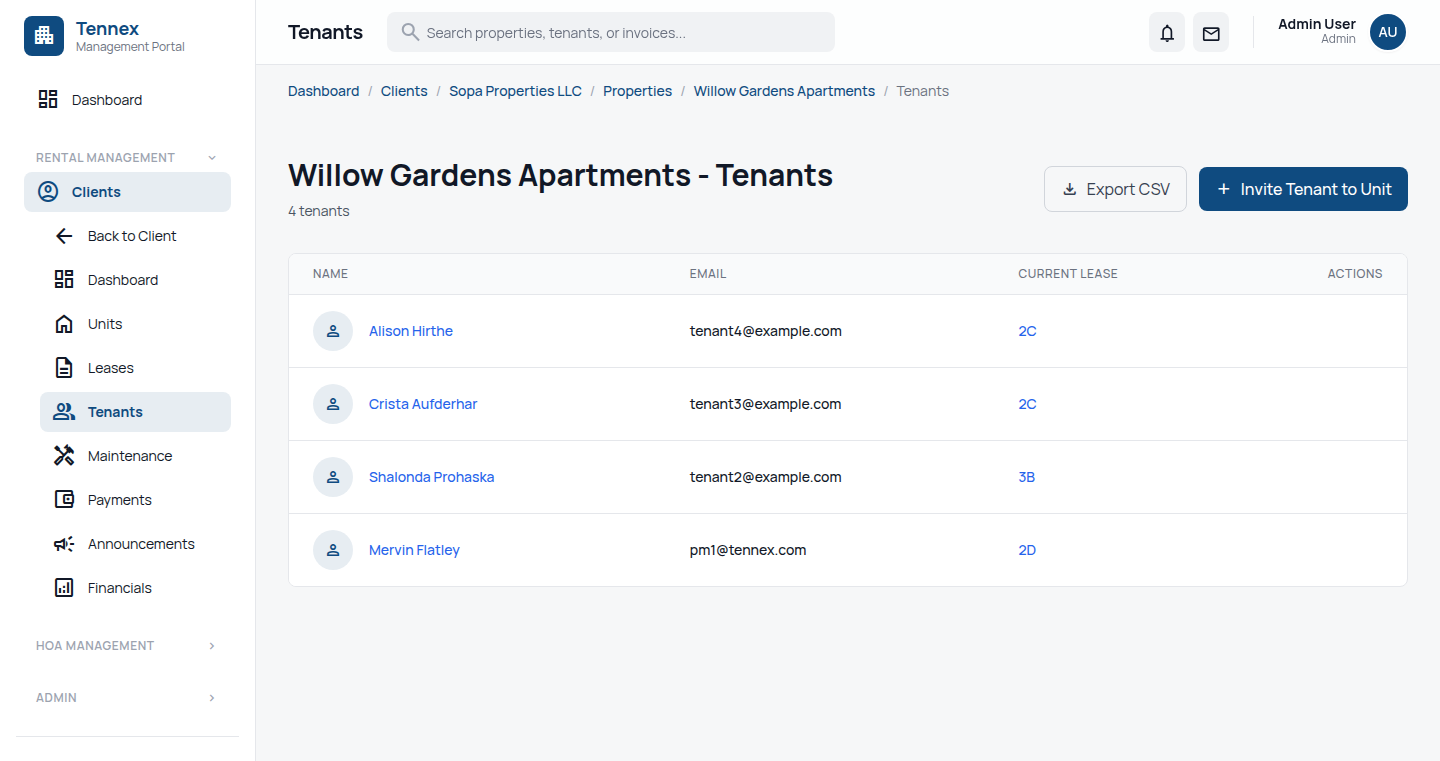
Steps
- Navigate to a vacant unit (Properties → Property → Unit)
- Click "Create Lease" or "Assign Tenant"
- Fill in tenant information:
- First Name & Last Name
- Email: Tenant will receive invitation to this email
- Phone Number
- Fill in lease details:
- Start Date: When the lease begins
- End Date: When the lease expires (or select Month-to-Month)
- Monthly Rent: Amount due each month
- Security Deposit: Amount collected
- Rent Due Day: Day of month rent is due (e.g., 1st, 15th)
- Click "Create Lease"
What Happens Next:
- ✅ Lease is created and linked to the unit
- ✅ Unit status changes from "Vacant" to "Occupied"
- ✅ Tenant receives an invitation email with login credentials
- ✅ Recurring rent invoices are automatically generated
- ✅ Tenant can login to view lease, pay rent, and submit maintenance requests
Lease Details & Features
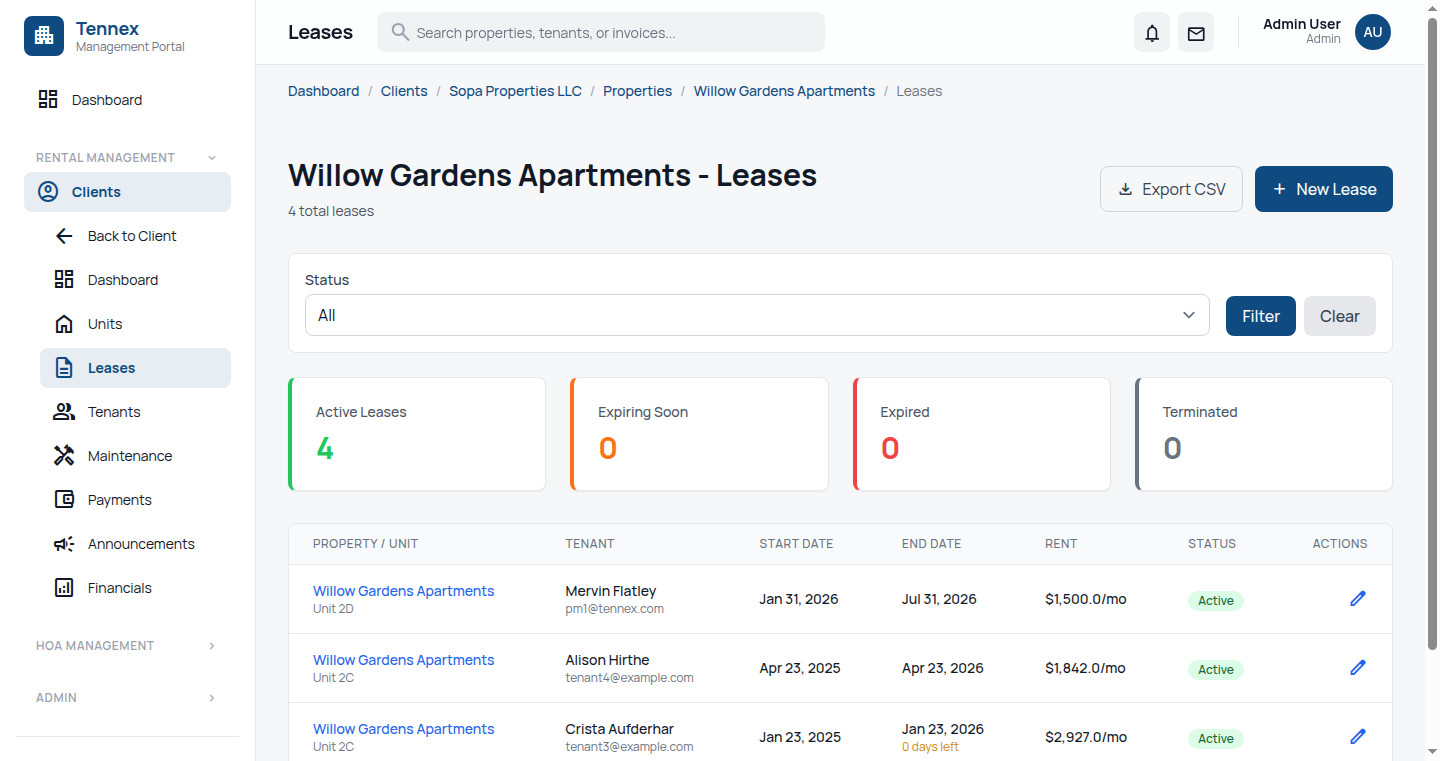
Lease Information Tracked
| Field | Description |
|---|---|
| Start/End Date | Lease term period |
| Monthly Rent | Base rent amount |
| Security Deposit | Deposit collected |
| Rent Due Day | When rent is due each month |
| Late Fee | Fee charged after grace period |
| Grace Period | Days after due date before late fee |
| Status | Active, Expired, Terminated, Pending |
Automatic Features
- Rent Invoices: Generated monthly based on lease terms
- Late Fee Calculation: Automatically added after grace period
- Renewal Reminders: Notifications before lease expires
- Balance Tracking: Outstanding balances calculated in real-time
Manage Leases
View Lease Details
- Go to "Leases" in navigation, or
- Go to Unit → Current Lease
Edit Lease
- On lease detail page, click "Edit"
- Update terms (rent amount, dates, etc.)
- Click "Save Changes"
Renew Lease
- On active lease, click "Renew Lease"
- Set new end date and any rent changes
- Click "Create Renewal"
Upload Lease Document
- On lease detail page, click "Documents"
- Upload signed lease agreement PDF
- Document is linked to the lease record
Move-Out Process
Steps
- On lease detail page, click "End Lease" or "Move Out"
- Set move-out date
- Record inspection notes (optional)
- Calculate final charges/credits:
- Outstanding rent
- Damage deductions from security deposit
- Credits/refunds
- Process security deposit return
- Click "Complete Move-Out"
After Move-Out:
- Lease status changes to "Terminated"
- Unit status changes to "Vacant"
- Unit is available for new leases
- Historical data is preserved for records
Next Step: Set up rent collection →