HOA Member Portal
Vote on proposals, view documents, reserve amenities, and pay dues
Accessing Your Portal
First Time Setup
- Receive email invitation from your HOA board
- Click activation link
- Verify your property information
- Set your password
- Click "Activate Account"
Your Community Portal: Each HOA has its own custom subdomain (e.g., oakhillhoa.tennexapp.com). This is your dedicated community portal.
Dashboard Overview
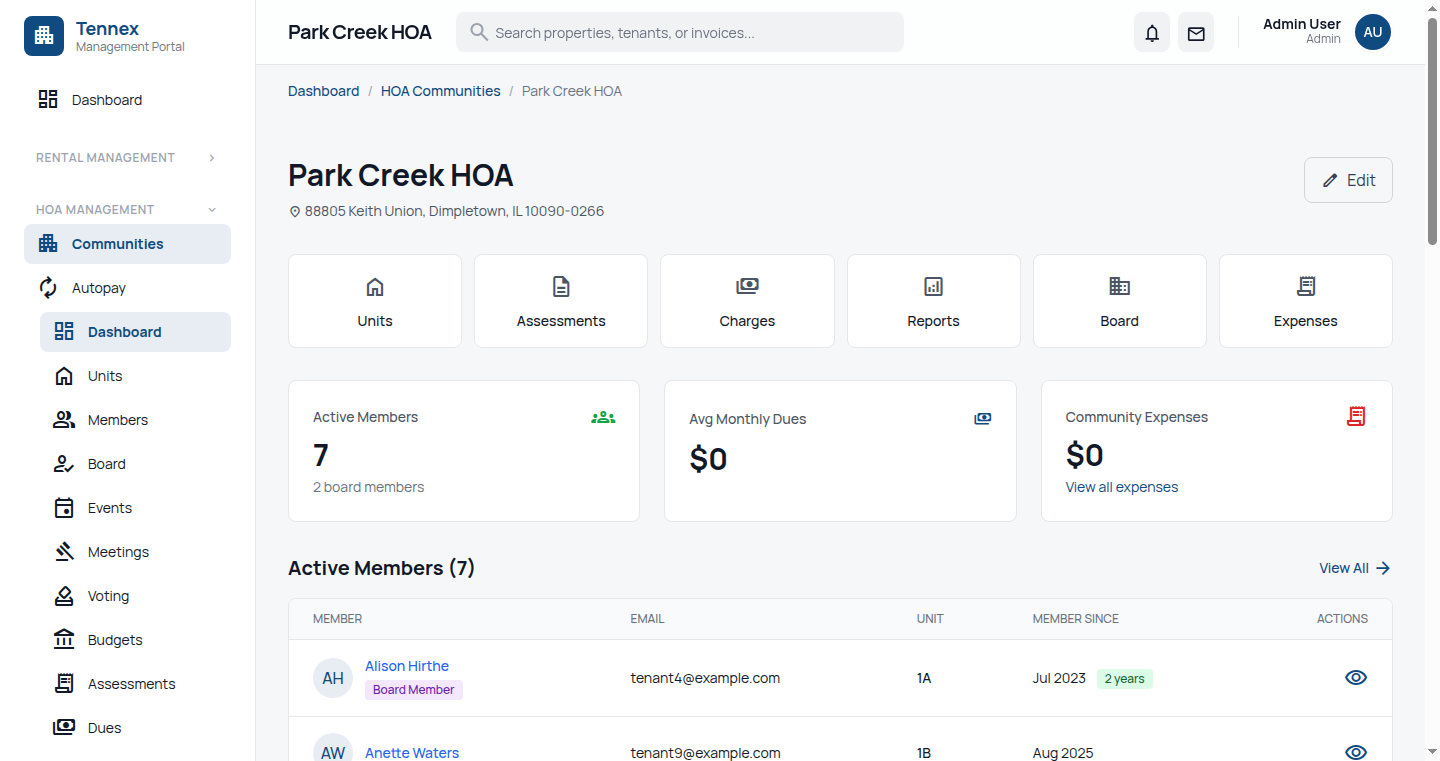
Your member dashboard displays:
- Next Assessment Due: Amount and due date
- Active Proposals: Items requiring your vote
- Upcoming Meetings: Board meetings and community events
- Amenity Reservations: Your upcoming bookings
- Community Announcements: Important updates from the board
- Violation Status: Any CC&R issues (if applicable)
Paying HOA Dues
Viewing Your Assessment
- Click "Assessments" in the sidebar
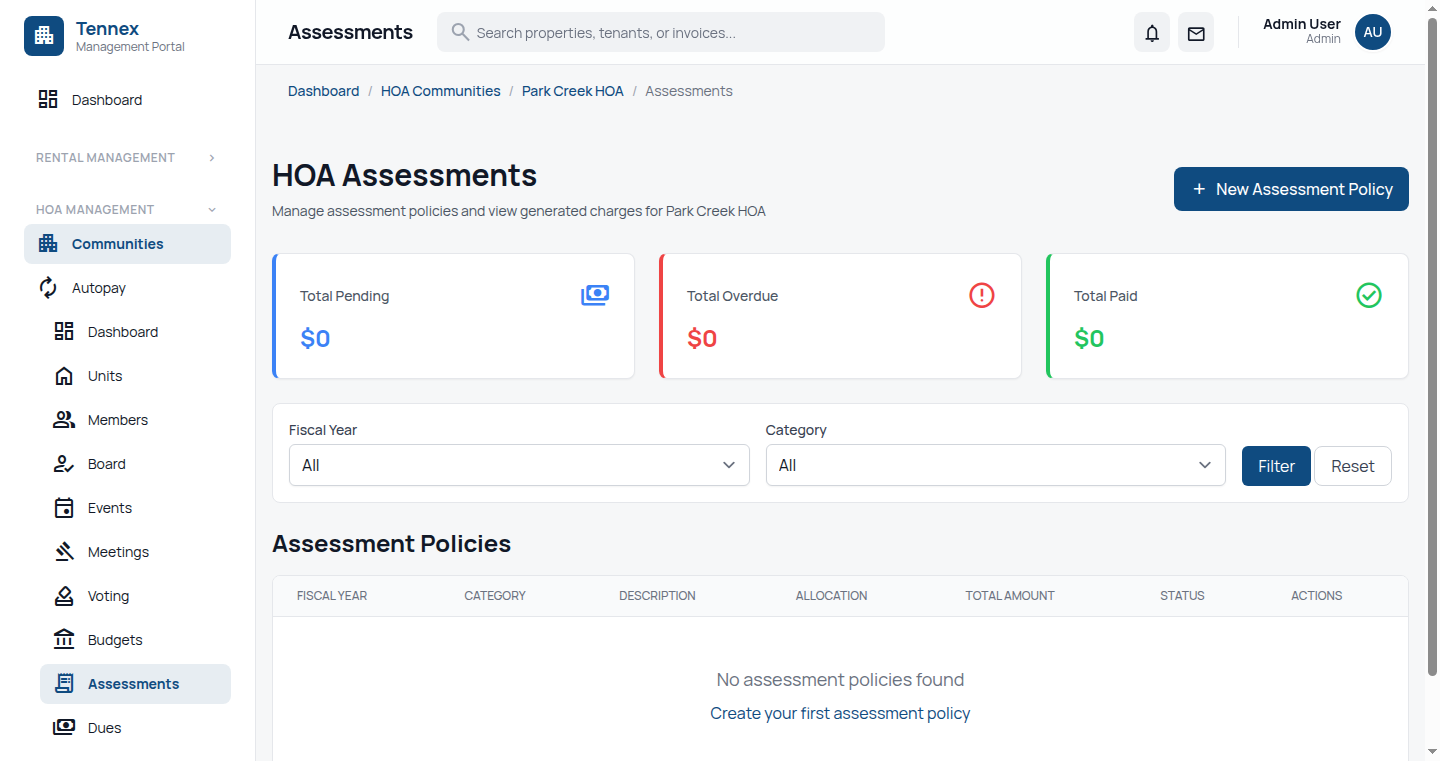
- View current and upcoming assessments:
- Monthly/quarterly amount
- Due date
- Payment status
- Late fees (if applicable)
Making a Payment
- Click "Pay Now" on your assessment
- Choose payment method:
- ACH (Bank Transfer): 1% fee (max $6)
- Credit/Debit Card: 3.5% fee
- Enter payment details
- Click "Pay Assessment"
- Receive email confirmation
Setting Up Autopay
- Go to Assessments → Payment Methods
- Click "Add Payment Method"
- Enter bank account or card details
- Check "Enable Autopay"
- Select payment date (e.g., 1st of each month)
- Click "Save"
Autopay Benefits: Never miss a payment, avoid late fees, and maintain good standing with your HOA automatically.
Prepaying Assessments
- Click "Prepay"
- Select number of months to prepay (up to 12)
- Review total amount
- Complete payment
- Future assessments automatically marked paid
Voting on Proposals
Active Proposals
- Click "Voting" in the sidebar
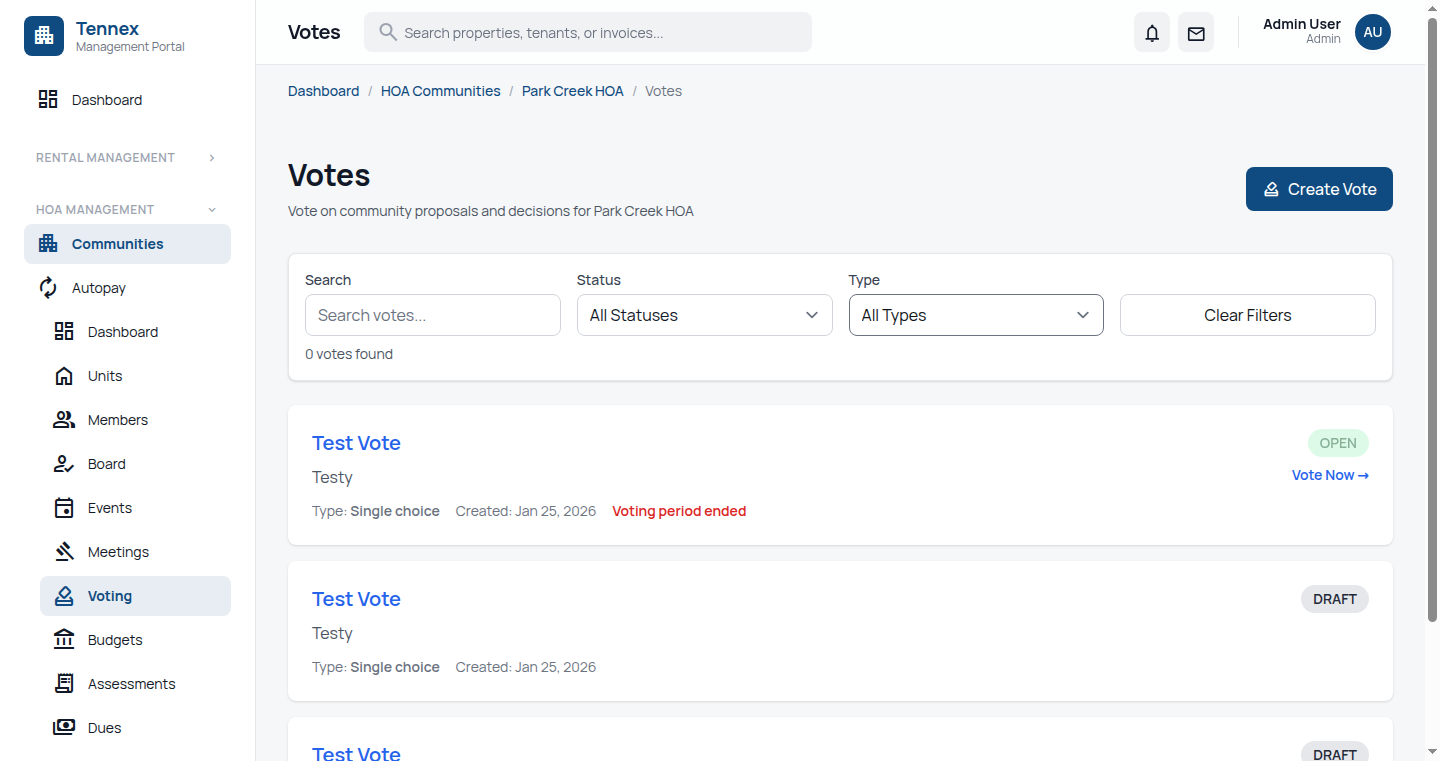
- View all active proposals requiring member vote
- Each proposal shows:
- Title and description
- Voting deadline
- Current vote count
- Your voting status
Casting Your Vote
- Click on a proposal to view full details
- Read the proposal description and supporting documents
- Select your vote:
- For: Support the proposal
- Against: Oppose the proposal
- Abstain: Choose not to vote
- Add comments (optional)
- Click "Submit Vote"
- Vote is recorded anonymously
Voting Rules: Votes are anonymous. Results are tallied when the deadline passes. You can change your vote before the deadline closes.
Viewing Results
- After voting closes, results are published
- View:
- Total votes cast
- Percentage for/against
- Outcome (passed/failed)
- Member comments
Reserving Amenities
Available Amenities
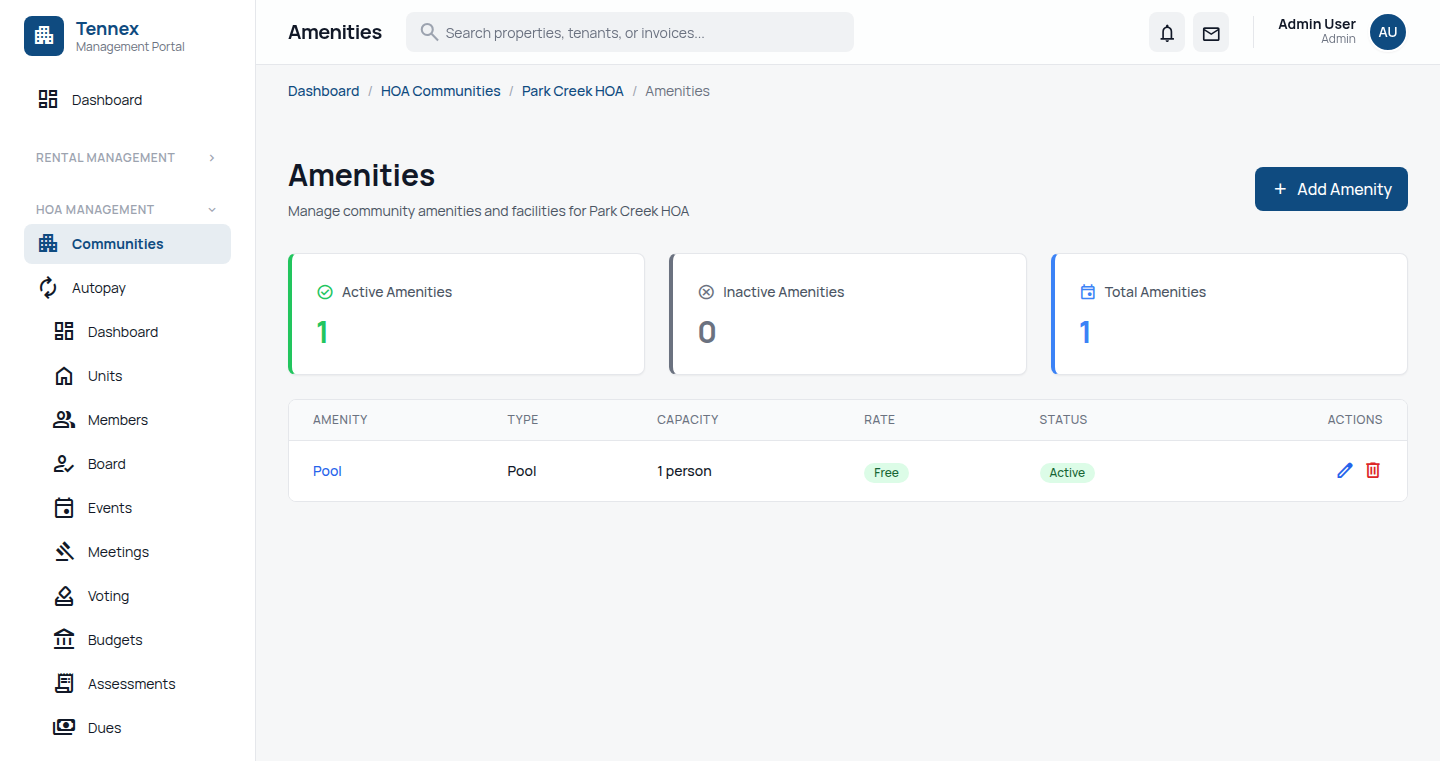
Common amenities you can reserve:
- Clubhouse
- Pool cabanas
- Tennis courts
- BBQ areas
- Guest parking spaces
Making a Reservation
- Click "Amenities" in the sidebar
- Select the amenity you want to reserve
- View availability calendar
- Click on available date/time slot
- Fill in reservation details:
- Number of guests (if applicable)
- Purpose/event type
- Contact information
- Review amenity rules and policies
- Accept terms
- Submit reservation
- Some amenities may require deposit or fee
Managing Reservations
- Go to Amenities → My Reservations
- View upcoming and past reservations
- Cancel reservation (if allowed by policy)
- View confirmation details
Cancellation Policy: Most amenities require 48-hour notice for cancellation. Late cancellations may forfeit deposits.
Accessing Documents
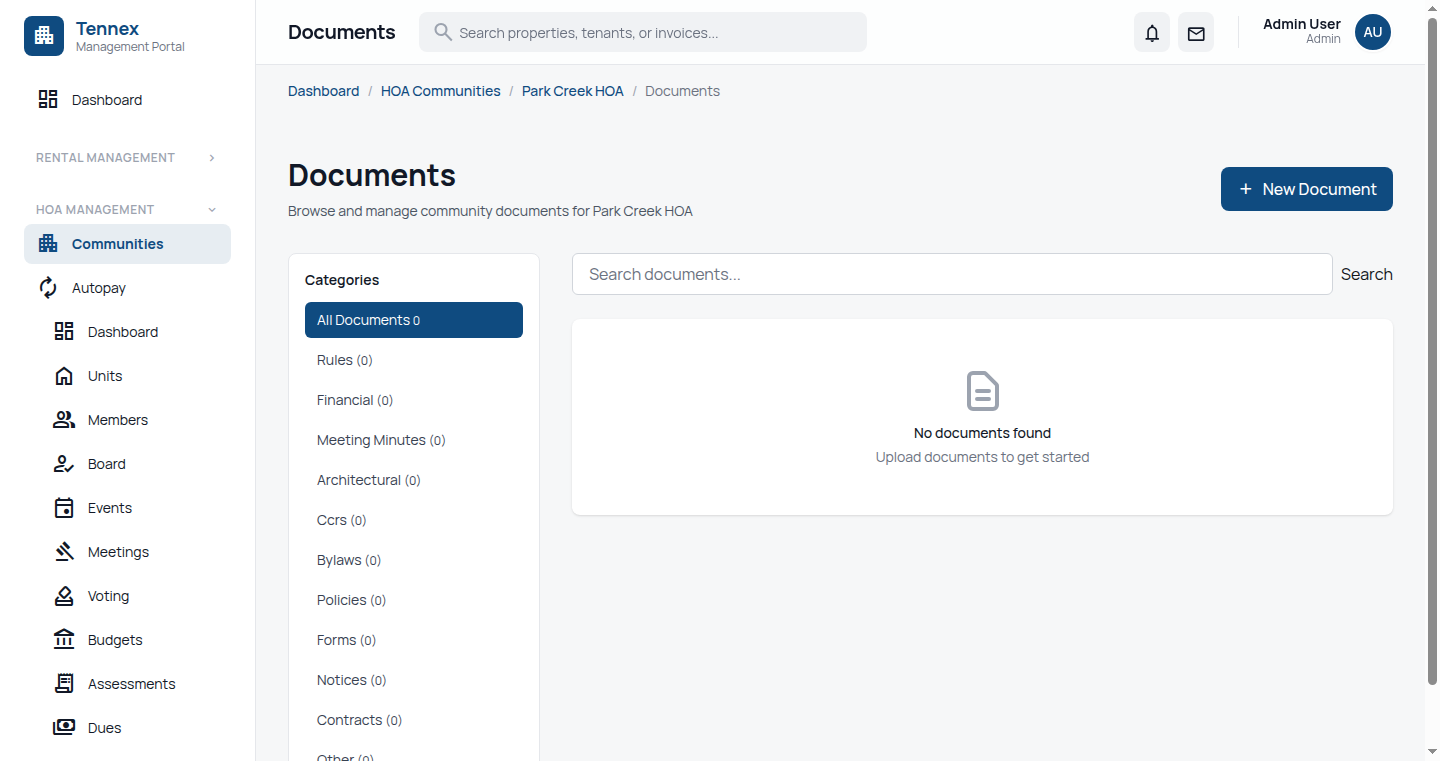
Document Library
- Click "Documents" in the sidebar
- Browse documents organized by category:
- Governing Documents: CC&Rs, bylaws, articles of incorporation
- Meeting Minutes: Board meeting minutes and agendas
- Financial Reports: Budget, reserves, annual reports
- Architectural Guidelines: Design standards and approval process
- Forms: Architectural request forms, violation appeals
- Community Info: Maps, vendor lists, emergency contacts
Downloading Documents
- Navigate to document category
- Click document name to preview
- Click "Download PDF" to save
- Documents are version-controlled with timestamps
Viewing Violations
Understanding Violations
If your property has a CC&R violation, you'll receive:
- Email notification
- Dashboard alert
- Description of violation
- Photos (if applicable)
- Deadline to resolve
- Potential fines
Accessing Violation Details
- Click "Violations" in the sidebar (if you have any)
- View violation information:
- Violation type
- Date reported
- Description
- Evidence photos
- Cure deadline
- Status
Resolving a Violation
- Review the violation details and CC&R references
- Take corrective action by the deadline
- Upload proof of correction:
- After photos
- Receipts
- Contractor invoices
- Add explanation/comments
- Click "Submit Resolution"
- Board reviews and closes violation
Appealing a Violation
- If you disagree with the violation, click "File Appeal"
- Write your appeal explanation
- Upload supporting evidence
- Submit appeal
- Board reviews and responds within policy timeframe
Architectural Requests
Submitting a Request
- Go to Documents → Forms
- Download Architectural Request Form
- Complete form with project details
- Attach:
- Site plans or drawings
- Material samples/colors
- Contractor information
- Photos of current state
- Upload completed form and attachments
- Click "Submit for Review"
Tracking Request Status
- Go to My Requests
- View status:
- Submitted: Under board review
- Additional Info Requested: Board needs clarification
- Approved: You can proceed with project
- Denied: Project not approved (with reason)
Managing Your Profile
Update Property Information
- Click your name in the top right
- Select "Profile"
- Update:
- Primary resident name
- Email and phone
- Emergency contact
- Number of occupants
- Vehicles (make, model, license plate)
- Pets (if registration required)
- Click "Save Changes"
Notification Preferences
- Go to Profile → Notifications
- Choose notification types:
- Assessment due reminders
- Voting deadlines
- Community announcements
- Meeting notifications
- Violation alerts
- Select delivery method (email, SMS, or both)
Common Questions
Can I have multiple users for my property?
Yes, you can add additional residents (spouses, adult children) with their own logins. Go to Profile → Additional Users to send invitations.
How do I know if my vote was counted?
You'll see "Vote Recorded" confirmation immediately. Your vote status shows on the proposal page. Votes are anonymized but participation is tracked.
Can I rent out amenities to non-members?
This depends on your HOA's policies. Most HOAs allow members to reserve amenities for guests, but check your CC&Rs and amenity rules.
What if I disagree with my assessment amount?
Contact your board through the portal's messaging system or attend the next board meeting. Assessment questions should be directed to the treasurer.
How do I report a community issue?
Use the "Report Issue" feature (similar to maintenance requests) to report common area problems, safety concerns, or CC&R violations you've observed.