HOA Management
Manage homeowner associations: voting, documents, amenities, and violations
Voting & Elections
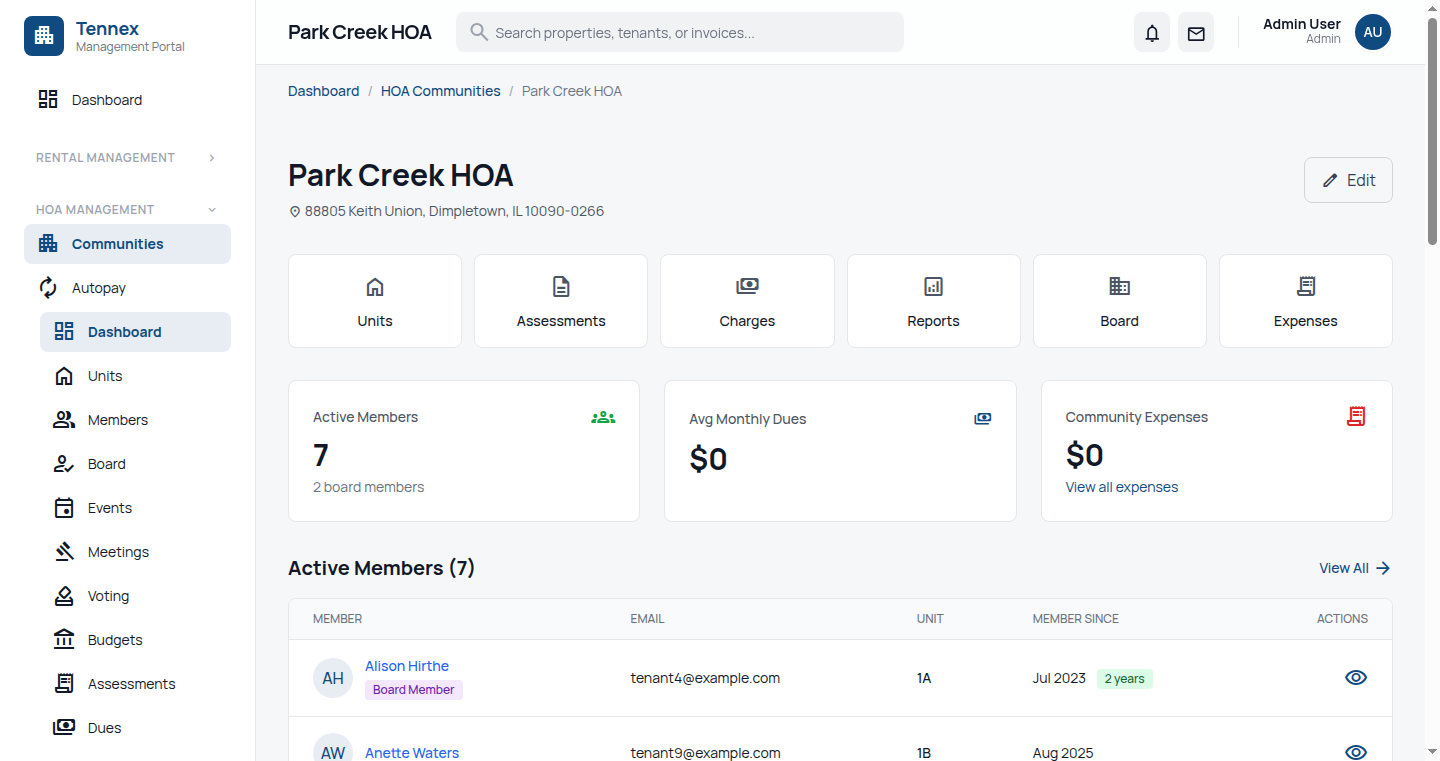
Create a Vote (Board Members)
- Go to "HOA" → "Voting"
- Click "Create Vote"
- Fill in vote details:
- Title: Clear description of the proposal
- Description: Full details and context
- Vote Type: Yes/No, Multiple Choice, Election
- Options: Add voting options
- Start Date: When voting opens
- End Date: Voting deadline
- Eligible Voters: All members, specific groups
- Click "Create Vote"
Cast a Vote (Members)
- Login to member portal
- Go to "HOA" → "Voting"
- View active votes
- Click on a vote to see details
- Select your choice
- Click "Submit Vote"
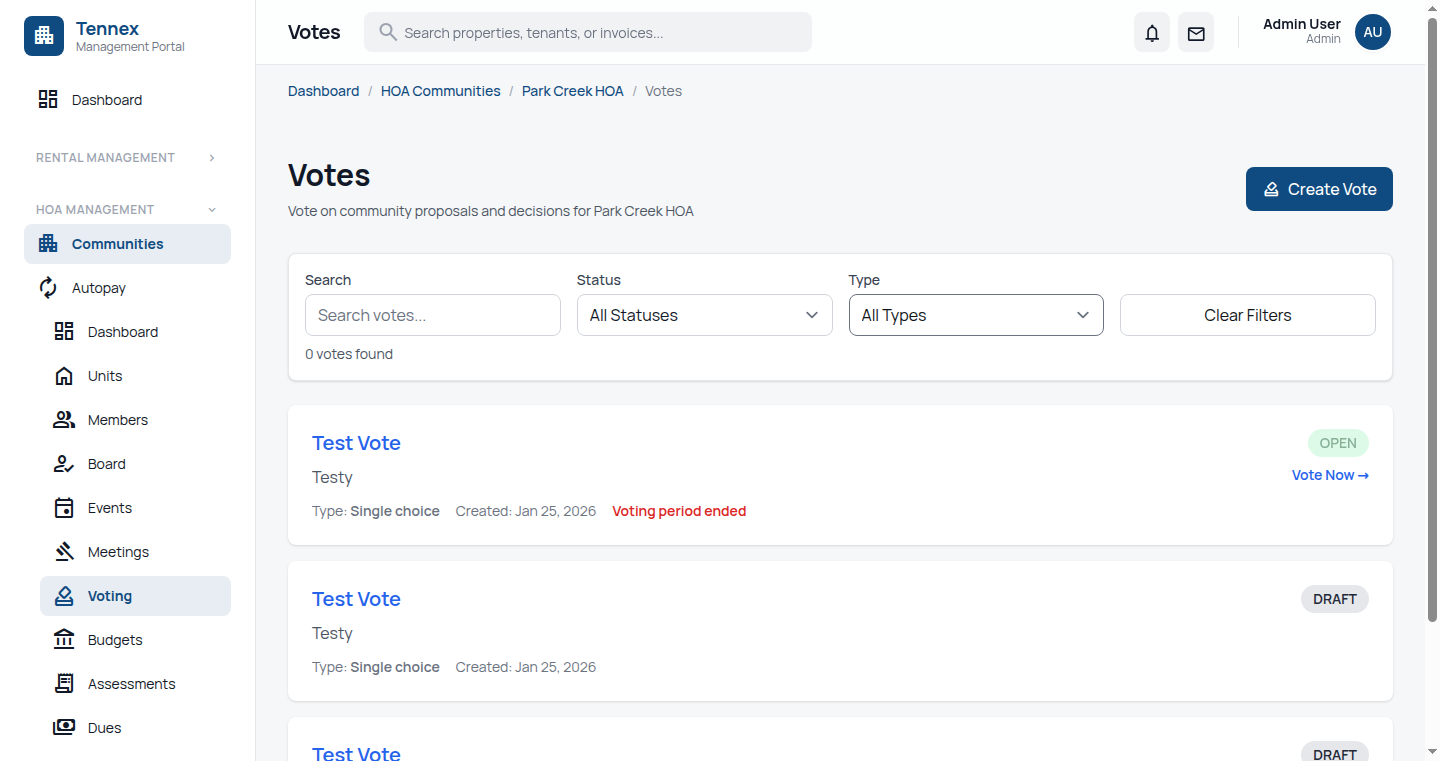
Voting Features:
- Anonymous voting option
- One vote per unit (enforced)
- Email reminders before deadline
- Results visible after voting closes
Documents
Upload Document (Board/Admin)
- Go to "HOA" → "Documents"
- Click "Upload Document"
- Fill in details:
- Title: Document name
- Category: Bylaws, Meeting Minutes, Financials, Rules, etc.
- File: Upload PDF or document file
- Visibility: All members, Board only
- Click "Upload"
View Documents (Members)
- Go to "HOA" → "Documents"
- Browse by category or search
- Click to view/download
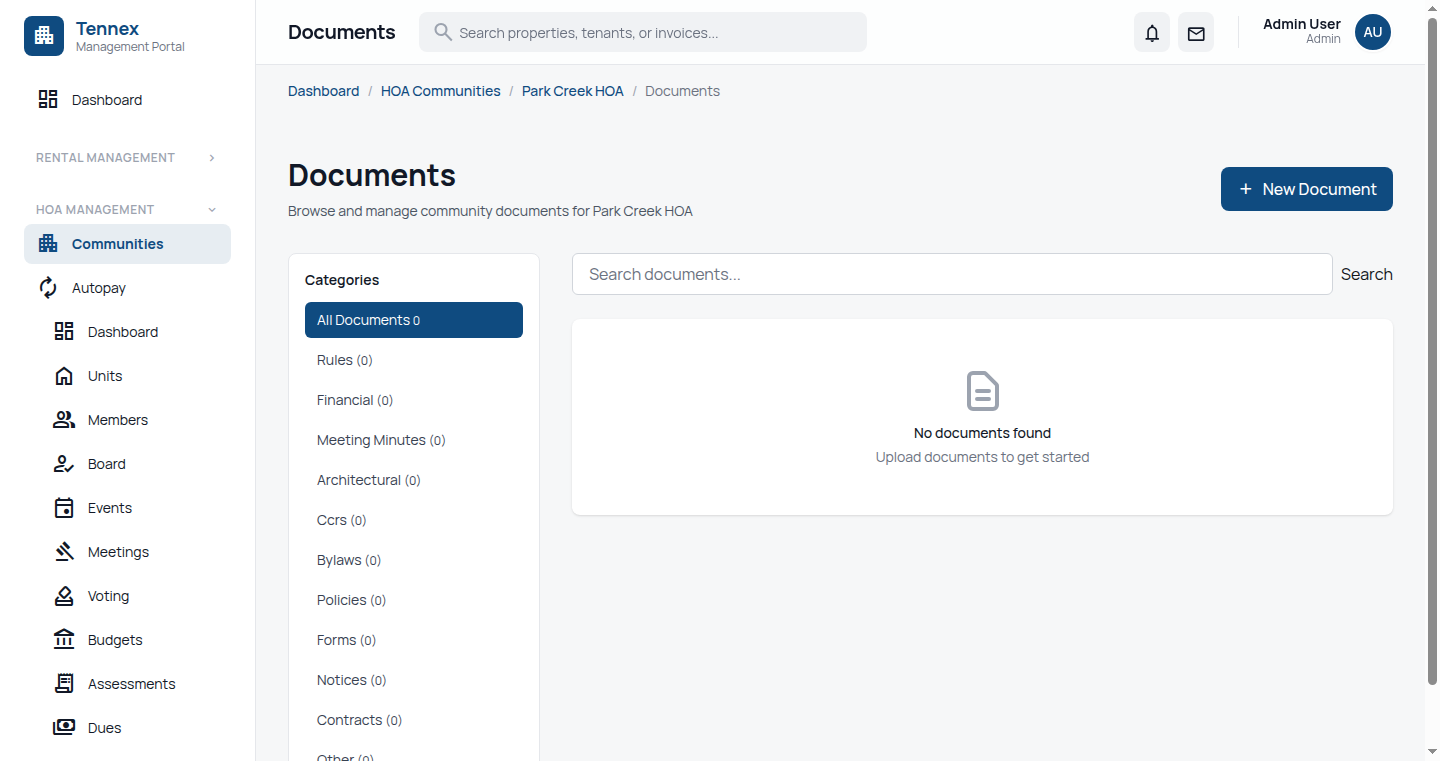
Document Categories
| Category | Examples |
|---|---|
| Governing Documents | CC&Rs, Bylaws, Articles of Incorporation |
| Meeting Minutes | Board meetings, Annual meetings |
| Financial | Budgets, Financial statements, Reserve studies |
| Rules & Regulations | Community rules, Architectural guidelines |
| Insurance | Policy documents, Certificates |
| Forms | Request forms, Application forms |
Amenity Reservations
Reserve Amenity (Members)
- Go to "HOA" → "Amenities"
- View available amenities (clubhouse, pool, gym, etc.)
- Select an amenity
- View calendar with availability
- Click on available time slot
- Fill in reservation details:
- Date and time
- Duration
- Purpose (optional)
- Number of guests
- Click "Reserve"
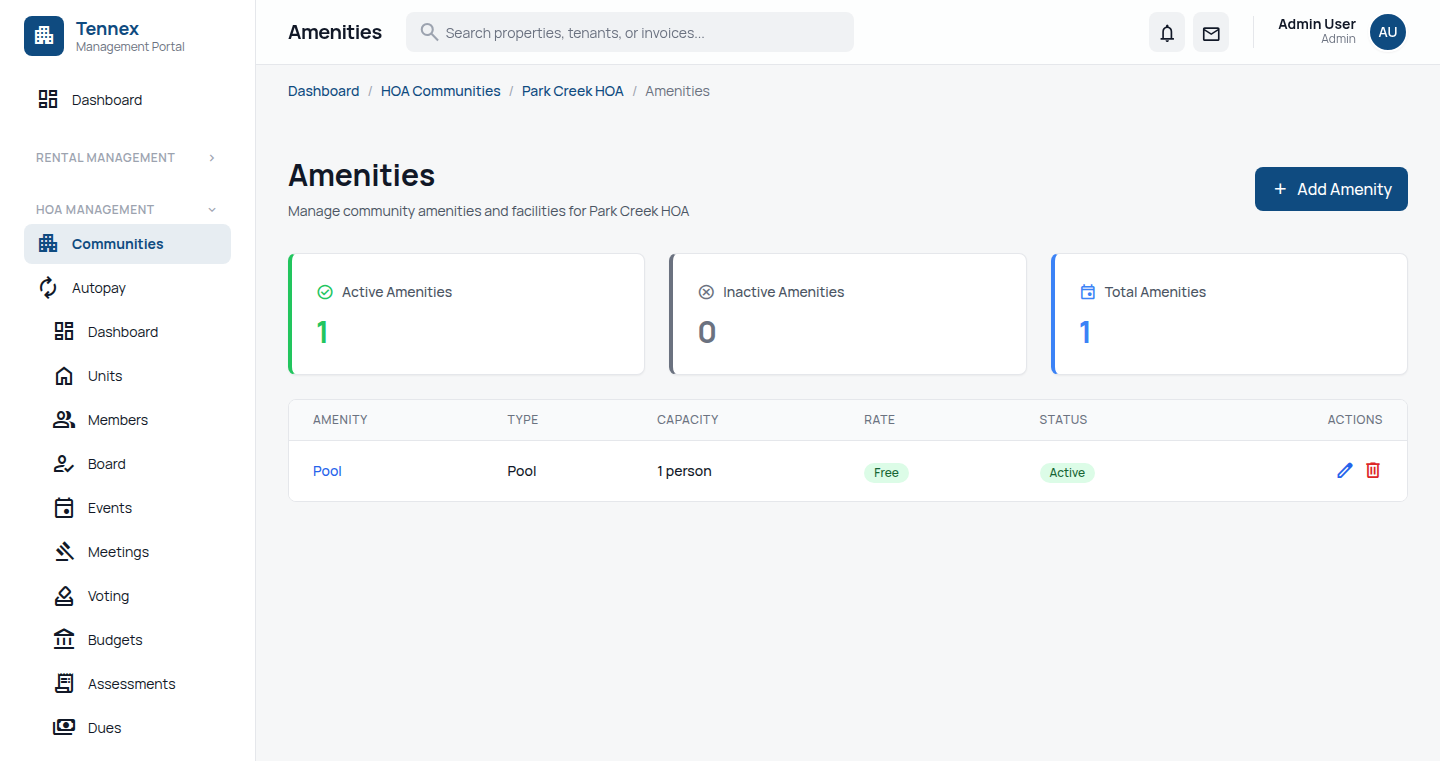
Manage Amenities (Admin)
- Go to "HOA" → "Amenities" → "Manage"
- Add new amenity
- Set rules:
- Available hours
- Maximum reservation duration
- Advance booking limit
- Guest limits
- Reservation fee (if any)
- View/approve pending reservations
Violations
Report Violation (Admin/Manager)
- Go to "HOA" → "Violations"
- Click "Report Violation"
- Fill in details:
- Unit/Address: Where violation occurred
- Category: Architectural, Noise, Parking, Pets, etc.
- Description: Details of the violation
- Photos: Upload evidence
- Severity: Warning, Fine, Hearing
- Click "Create Violation"
Violation Workflow
- Reported: Violation logged, notice sent to owner
- Warning: First notice, time to correct
- Fine Issued: If not corrected, fine applied
- Hearing: Opportunity to appeal
- Resolved: Corrected or closed
View Violations (Member)
- Members can view violations against their unit
- Respond to violation notices
- Request hearing if disputing
Next Step: Set up communications →