Properties & Units
Add, manage, and organize your property portfolio
Add a Property
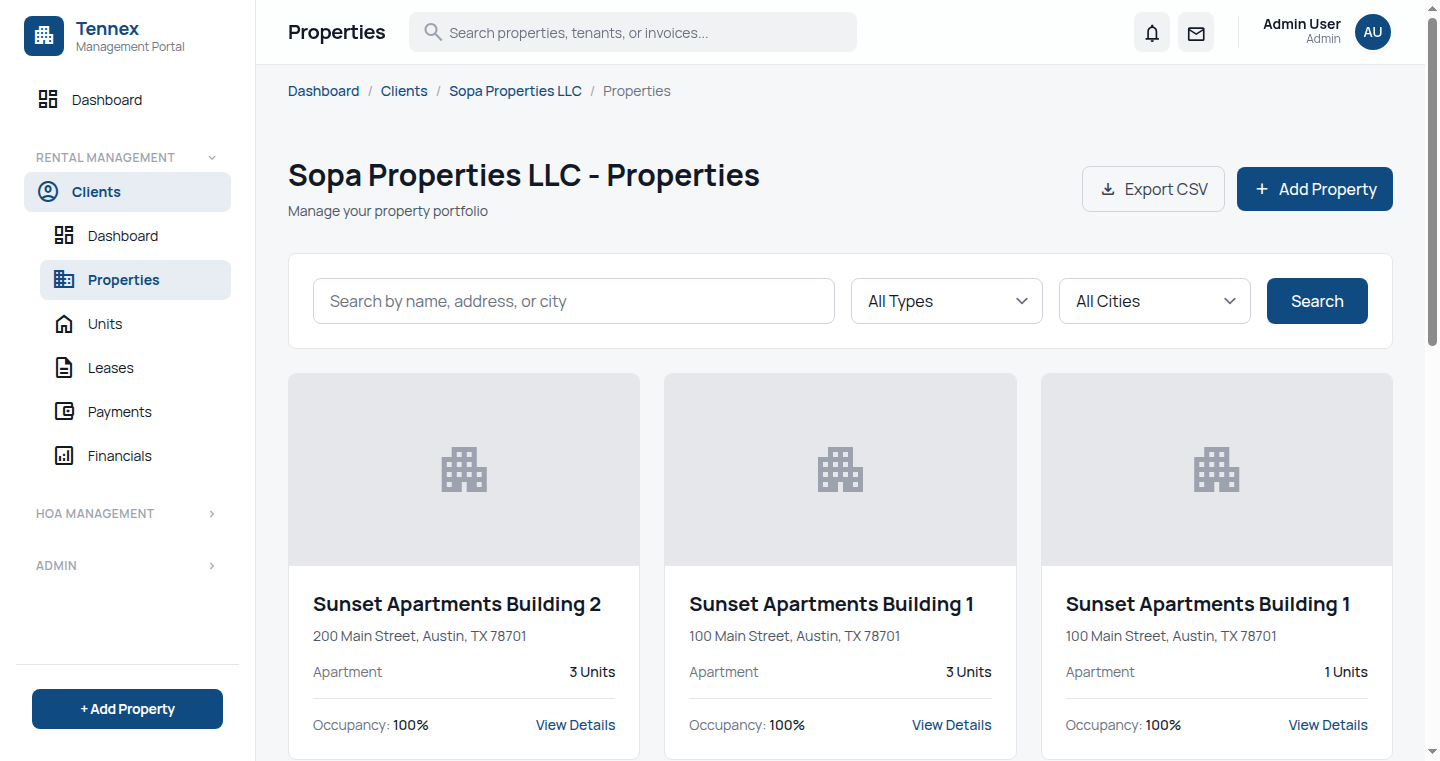
Steps
- Go to "Properties" in the navigation menu
- Click "Add Property"
- Fill in property details:
- Property Name: e.g., "Sunset Apartments"
- Property Type: Single Family, Multi-Family, Commercial, Mixed-Use
- Address: Street, City, State, ZIP
- Description: (optional) Notes about the property
- Click "Create Property"
Property Types Explained:
- Single Family: One dwelling unit (house, condo, townhouse)
- Multi-Family: Multiple units (apartment building, duplex)
- Commercial: Business/office space
- Mixed-Use: Combination of residential and commercial
Add Units to a Property
Steps
- From the property detail page, click "Add Unit"
- Fill in unit details:
- Unit Number/Name: e.g., "101", "A", "Penthouse"
- Unit Type: Studio, 1BR, 2BR, 3BR, 4BR+
- Bedrooms: Number of bedrooms
- Bathrooms: Number of bathrooms
- Square Feet: Unit size
- Market Rent: Expected monthly rent
- Click "Create Unit"
Bulk Add Units
For buildings with many similar units:
- Click "Bulk Add Units"
- Set unit range (e.g., 101-120)
- Set default values (type, bedrooms, bathrooms)
- Click "Create Units"
Unit Status: Units automatically show as "Vacant" when created. Status changes to "Occupied" when a tenant is assigned.
Manage Properties & Units
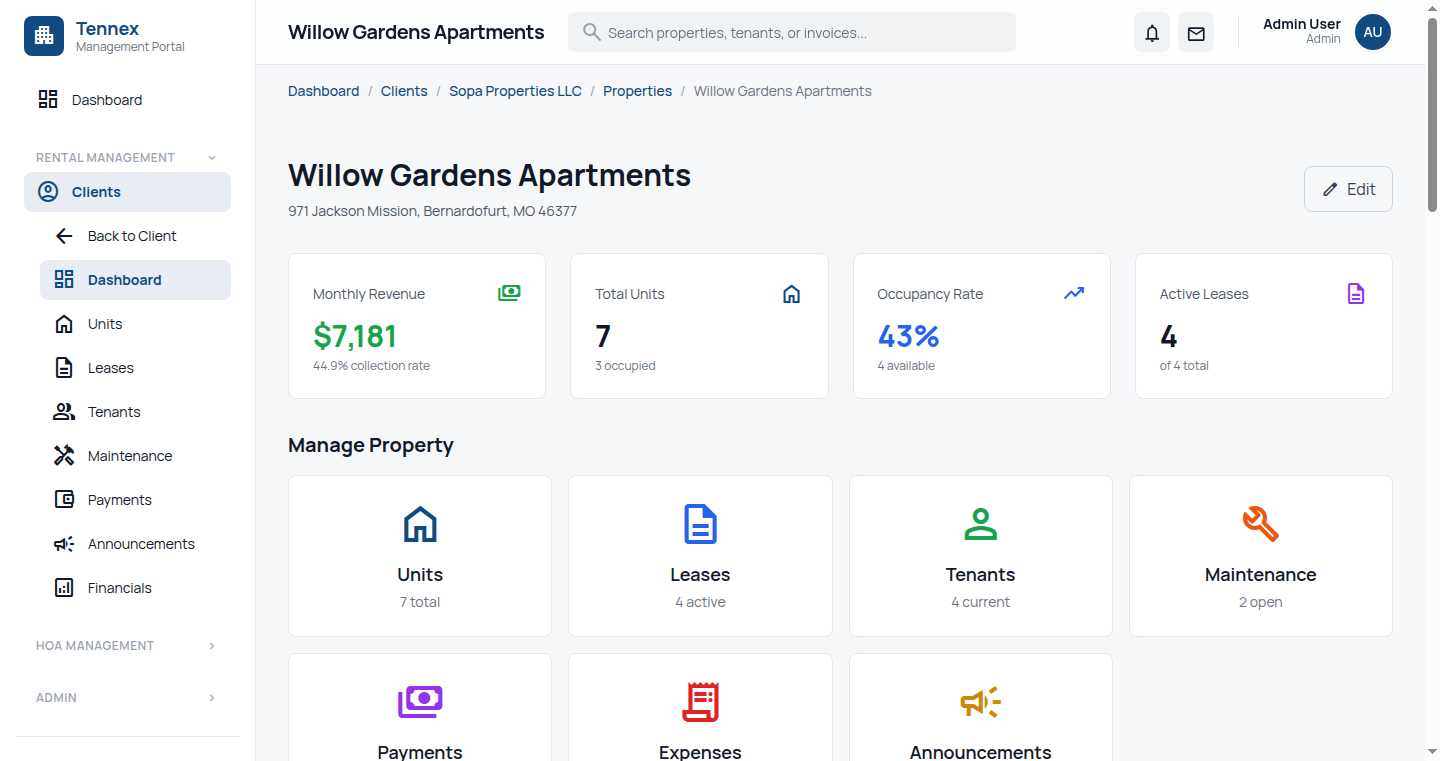
View Property Details
- Go to "Properties"
- Click on a property name
- View overview: units, occupancy rate, income summary
Edit Property
- On property detail page, click "Edit"
- Update information
- Click "Save Changes"
View Unit Details
- From property detail page, click on a unit
- View unit information: current tenant, lease details, maintenance history
Edit Unit
- On unit detail page, click "Edit"
- Update unit information
- Click "Save Changes"
Upload Property Photos
- On property or unit page, click "Photos" or "Upload Photos"
- Drag and drop or select photos
- Set a photo as primary (shown in listings)
Upload Documents
- Click "Documents" tab
- Upload files (insurance, permits, etc.)
- Documents are stored securely and accessible to authorized users
Next Step: Add tenants and create leases →