Maintenance
Handle maintenance requests, work orders, and preventive maintenance
Submit Maintenance Request (Tenant View)
Steps for Tenants
- Login to tenant portal
- Click "Maintenance" or "Submit Request"
- Fill in the request form:
- Category: Plumbing, Electrical, HVAC, Appliance, General, etc.
- Priority: Emergency, High, Medium, Low
- Description: Detailed description of the issue
- Photos: Upload photos of the problem (optional but helpful)
- Preferred Contact Time: When you're available
- Click "Submit Request"
After Submission:
- ✅ Request is logged in the system
- ✅ Property manager is notified immediately
- ✅ You receive a confirmation with ticket number
- ✅ You can track status in your portal
Emergency Requests: For emergencies (water leak, no heat, security issue), select "Emergency" priority. You may also receive emergency contact information.
Manage Maintenance Requests (Manager View)
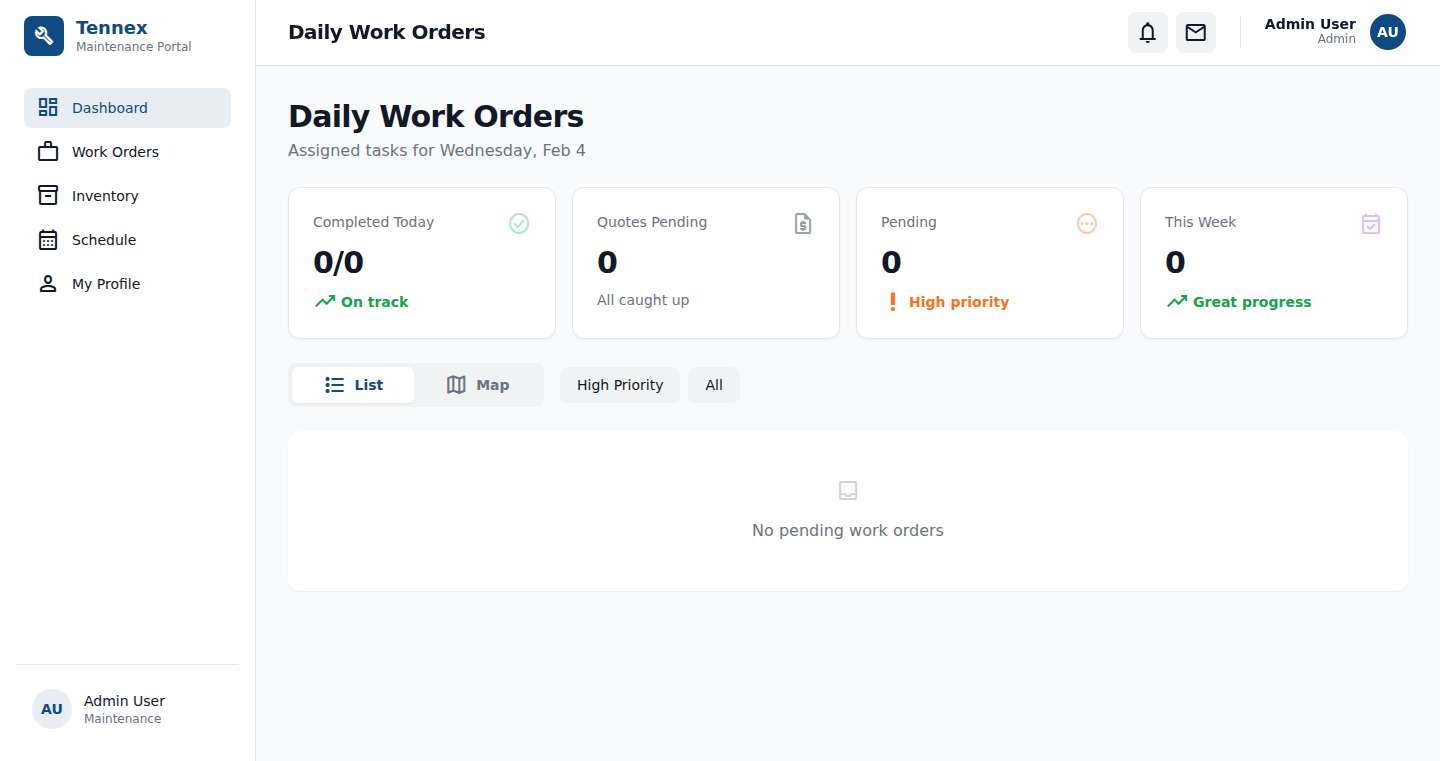
View All Requests
- Go to "Maintenance" in navigation
- View request list with status indicators
- Filter by: Status, Priority, Property, Category
Request Status
| Status | Description |
|---|---|
| New | Just submitted, needs review |
| Assigned | Assigned to staff/vendor |
| In Progress | Work has started |
| Pending Parts | Waiting for parts/materials |
| Completed | Work finished |
| Closed | Confirmed complete by tenant/manager |
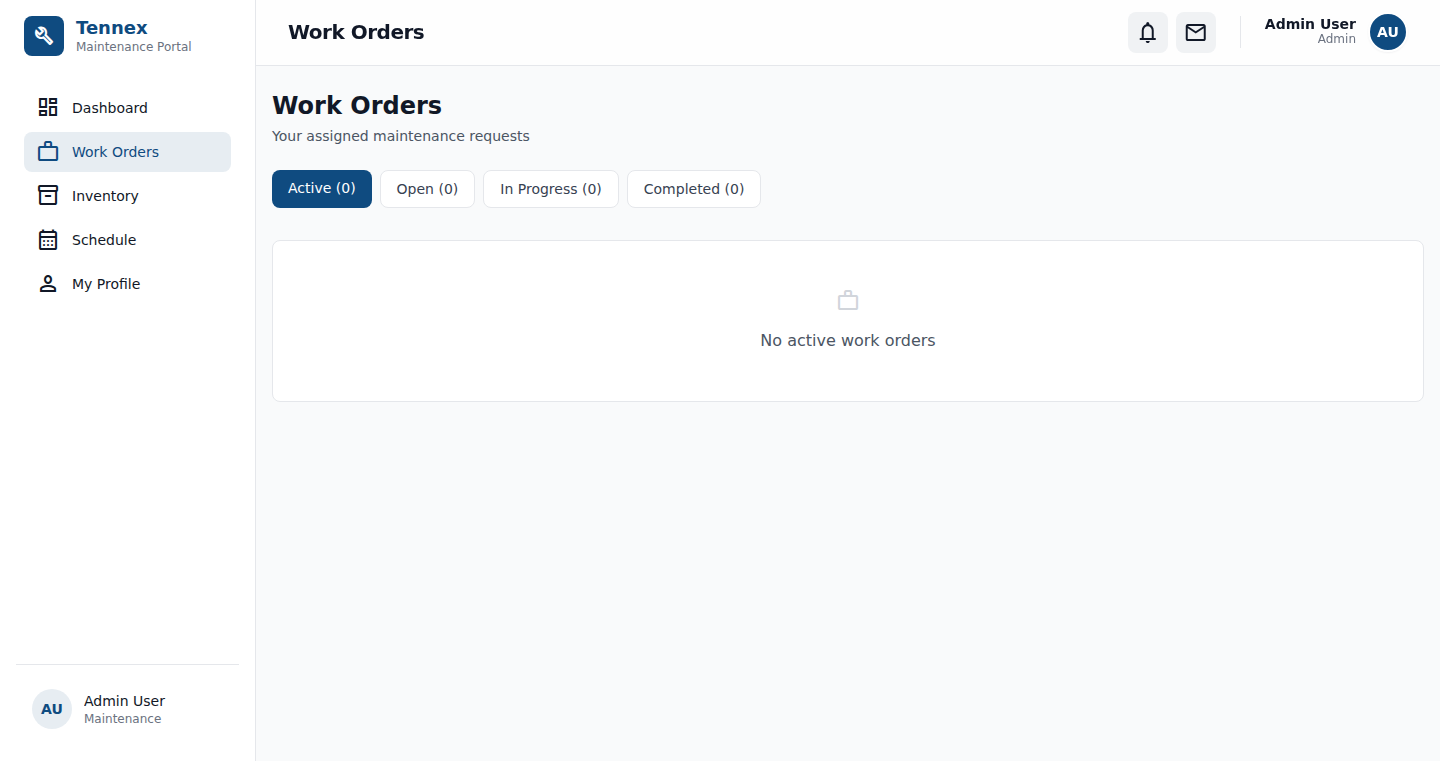
Process a Request
- Click on a request to view details
- Review description, photos, priority
- Click "Assign" to assign to staff member
- Add internal notes if needed
- Update status as work progresses
- Click "Complete" when finished
Communicate with Tenant
- Use the "Message" button to send updates
- Messages appear in tenant's portal
- Tenant receives email notification
Work Orders
Create Work Order
For internal or vendor work not from tenant requests:
- Go to "Maintenance" → "Work Orders"
- Click "Create Work Order"
- Fill in details:
- Property/Unit
- Description of work
- Assigned staff or vendor
- Estimated cost
- Due date
- Click "Create"
Track Work Order Costs
- Add labor hours
- Add materials/parts costs
- Track total expenses
- Link invoices from vendors
Preventive Maintenance
Schedule Recurring Maintenance
- Go to "Maintenance" → "Schedules"
- Click "Create Schedule"
- Set up recurring task:
- Task name (e.g., "HVAC Filter Change")
- Property/Units
- Frequency: Monthly, Quarterly, Annually
- Default assignee
- Click "Save Schedule"
Common Preventive Tasks:
- HVAC filter replacement (monthly/quarterly)
- Smoke detector testing (semi-annually)
- Fire extinguisher inspection (annually)
- Pest control (monthly/quarterly)
- Landscaping (weekly/bi-weekly)
Next Step: Manage HOA features →