User Management
Manage team members, roles, and permissions
Understanding User Roles
| Role | Access Level | Common Use Cases |
|---|---|---|
| Admin | Full system access | Organization owner, executive |
| Property Manager | Manage properties, tenants, maintenance | Day-to-day operations staff |
| Maintenance Staff | View/update assigned maintenance requests | Maintenance technicians |
| Tenant | View own lease, pay rent, submit requests | Renters, residents |
| Owner | View properties they own, financial reports | Property investors |
| HOA Board Member | Manage HOA features (votes, documents) | HOA board members |
| HOA Member | Participate in HOA (vote, view documents) | Homeowners in HOA |
Invite Team Members (Staff)
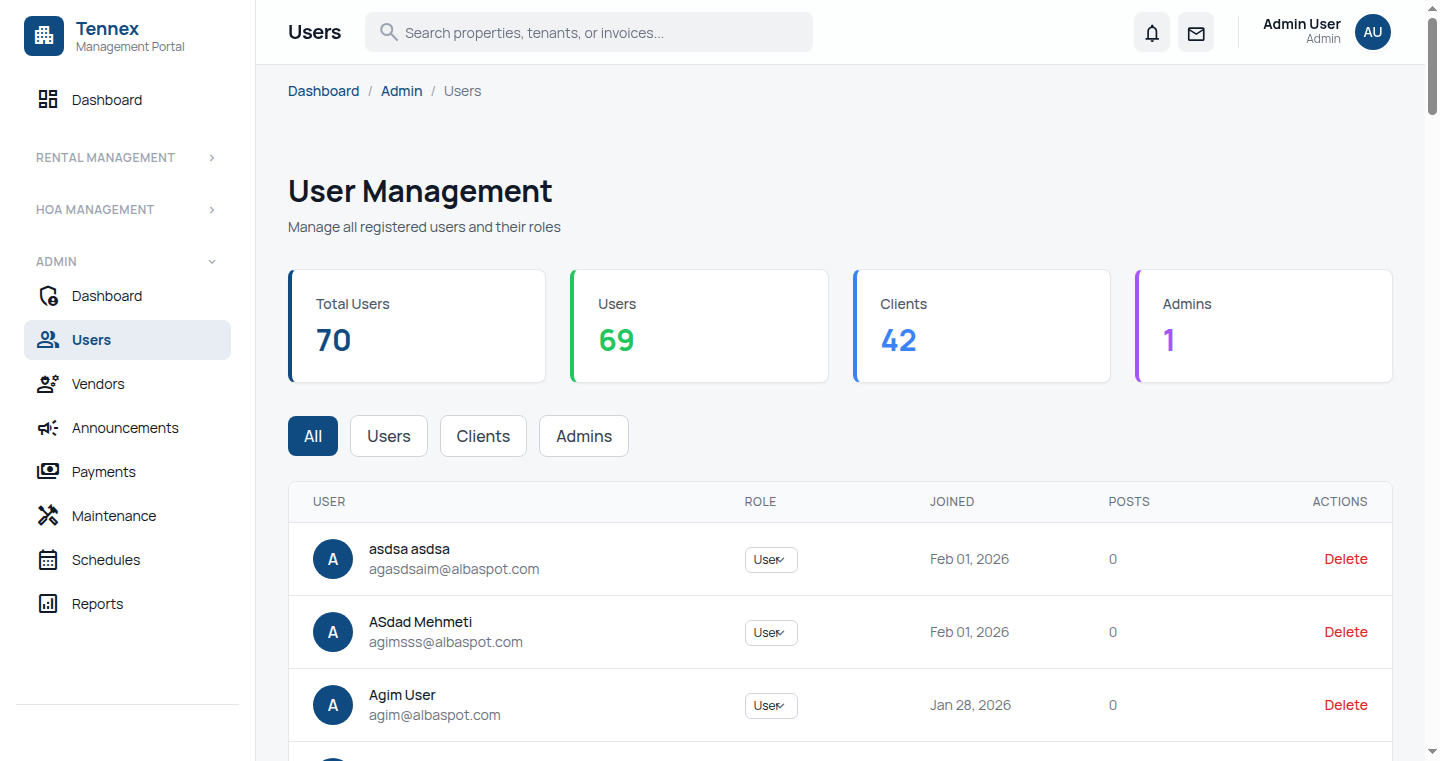
Steps
- Go to "Users" in the sidebar (under the Rental Management section)
- Click "Invite User"
- Fill in the invitation form:
- First Name & Last Name
- Email: Work email address
- Role: Select appropriate role (Admin, Property Manager, Maintenance Staff)
- Phone Number: (optional)
- Click "Send Invitation"
What Happens Next:
- ✅ User receives an invitation email
- ✅ Email contains login instructions and temporary password
- ✅ User can login immediately using their email and the temporary password
- ✅ User should change password after first login
Best Practices:
- Use Property Manager role for staff who need full property management access
- Use Maintenance Staff role for technicians who only need maintenance access
- Assign appropriate permissions based on job responsibilities
Invite Tenants
Note: Tenants are usually invited when assigning them to a unit. See Tenant Management for the recommended flow.
Manual Tenant Invitation
- Go to "Organization" → "Users"
- Click "Invite User"
- Select "Tenant" role
- Enter tenant details
- Click "Send Invitation"
Manage Existing Users
View All Users
- Go to "Organization" → "Users"
- View list of all users with roles
Edit User
- Click on a user's name
- Click "Edit"
- Update information (name, email, phone, role)
- Click "Save Changes"
Deactivate User
- Click on user
- Click "Deactivate User" or "Delete"
- Confirm action
User will no longer be able to login. Historical data is preserved.
Change User Role
- Click on user
- Click "Change Role"
- Select new role
- Click "Save"
User's permissions update immediately.
Next Step: Add your properties →